· deepdives · 7 min read
5 Surprising Use Cases for the Device Posture API in Modern Web Apps
Discover five unexpected ways the Device Posture API can transform web experiences - from more immersive games to fitness-aware apps and ergonomics that reduce strain - plus implementation tips, privacy considerations, and sample code patterns.
Introduction
Get practical, production-ready ideas you can try this week. Read on and you’ll know how to use the Device Posture API to make apps that feel aware of how a user holds or folds their device - not just where the screen is. You’ll see five surprising, high-value use cases, each with UX patterns, implementation tips, and privacy reminders.
What the Device Posture API is (briefly)
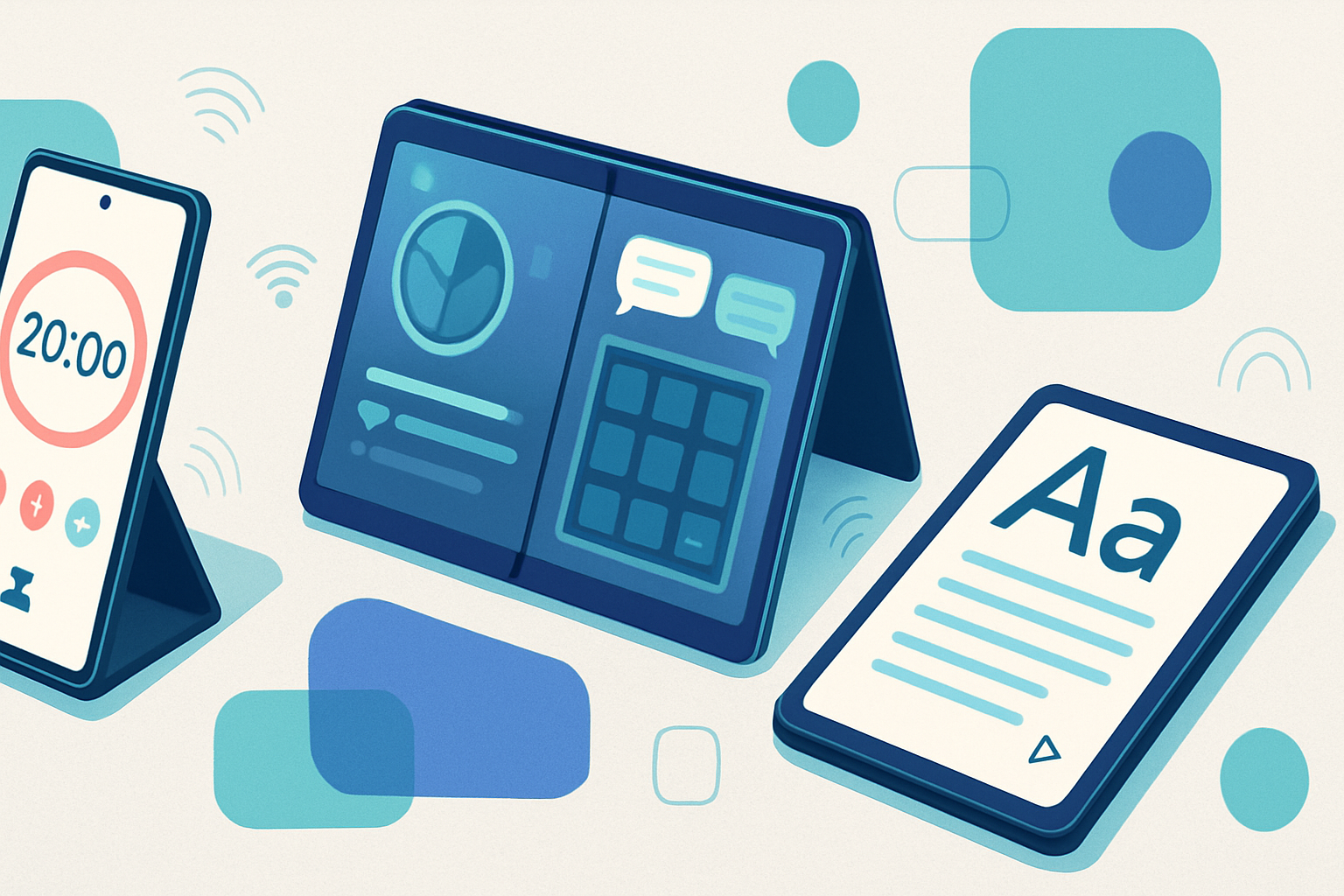
The Device Posture API exposes the physical configuration of a device with multiple display regions or a hinge (foldables, dual-screen laptops, etc.). Instead of guessing layout from viewport size, you can react to postures such as “flat”, “book”, “tent”, or hinge angles and segment boundaries. Use it for layout decisions, context-aware features, or innovative interactions.
For specification and background reading see the WICG discussions and introductions from browser teams:
- WICG Device Posture repository: https://github.com/WICG/device-posture
- Introduction and examples from browser teams: https://developer.chrome.com/blog/device-posture-api/
- Guidance for foldables and responsive patterns: https://web.dev/foldables/
A few progressive-enhancement rules before we jump in
- Always feature-detect. Foldable support varies across devices and browsers.
- Combine posture signals with traditional metrics (viewport size, orientation, input availability). Don’t replace them entirely.
- Debounce posture events and be mindful of rapid hinge jitter.
- Respect user privacy: posture data can be sensitive (how someone is holding a device). Avoid sending raw posture streams to servers without consent.
Use case 1 - Game states and physical controls (more immersive play)
Why it matters
Games thrive on context. Knowing that a device is used in “book” mode vs. “flat” lets you adapt input models, HUD placement, and camera logic. That creates more intuitive, tactile experiences.
How to use it
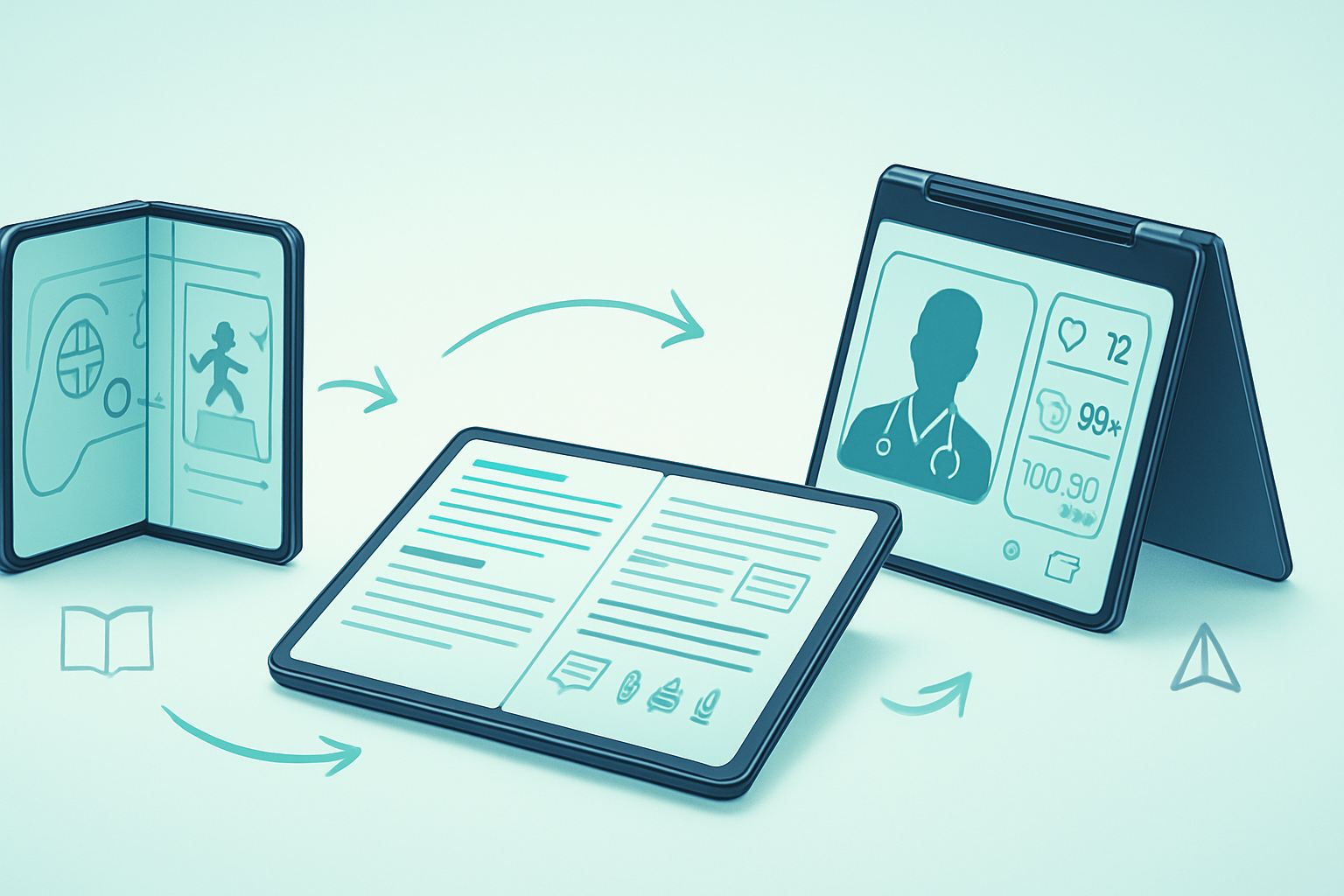
- In a racing game, when the device is in “book” mode you can show split controls on each screen segment (left-hand steering, right-hand map) and make the middle hinge invisible to the gameplay area.
- In a puzzle game, tent mode becomes an ideal spectator mode - the device can show player controls on the lower segment and a dynamic scoreboard on the top.
UX pattern
- Map critical controls to the most stable segment.
- Use the hinge as a natural separator - don’t try to render critical content across it.
Example (conceptual) code
if ('devicePosture' in navigator) {
  navigator.devicePosture.addEventListener('change', e => {
    const posture = e.posture; // e.g. 'flat' | 'book' | 'tent'
    updateGameLayoutForPosture(posture);
  });
}
Notes
- Combine posture with input detection: if a controller is connected, adjust UI to prioritize controller input.
- Debounce updates to avoid layout thrash during quick fold/unfold actions.
Use case 2 - Fitness and exercise detection (context-aware workouts)
Why it matters
Fitness apps rely on accurate posture and orientation signals. While not a medical-grade sensor set, posture plus device motion can help detect common poses (plank vs push-up), automatically count reps in some exercises, or lock the screen during a movement to avoid accidental taps.
How to use it
- If the device is in a low-angle, landscape, stable “flat” posture on the floor, automatically enable floor-exercise mode with larger timers and touch-locked UI.
- For two-screen devices placed as a stand, show coaching video on one screen and real-time form feedback on the other.
UX pattern
- Provide a short calibration step (e.g., “Place your device on the mat and tap start”).
- Offer a fallback manual mode for unsupported devices.
Example (conceptual) code)
async function initWorkoutMode() {
  if (!('devicePosture' in navigator)) return enableManualMode();
  const posture = await navigator.devicePosture.getCurrent();
  if (posture.type === 'flat' && posture.stability > 0.8) {
    enterFloorExerciseMode();
  } else {
    promptUserToPositionDevice();
  }
}
Notes
- Combine posture with accelerometer/gyroscope data to improve detection accuracy.
- Be explicit about data use: if you store sensor streams for analytics, get consent.
Use case 3 - Dynamic ergonomic adjustments (reduce strain and adapt UI)
Why it matters
Ergonomics improves comfort and reduces repetitive strain. Detecting when a user has their device in a cramped “phone-like” posture vs a more stable laptop-like posture enables subtle but effective UI adjustments.
How to use it
- Increase font sizes and touch target spacing when the device is held in a single-handed vertical posture.
- Move frequently used actions to the bottom segment when the hinge suggests a stable lower surface.
- When tent mode or low-angle postures are detected, switch to a simplified UI to reduce interaction friction.
UX pattern
- Animate transitions smoothly so adjustments feel natural rather than jarring.
- Let users opt out if they prefer consistent layouts.
Implementation tips
- Use a small set of ergonomic presets (e.g., compact, comfortable, presentation) and map postures to presets.
- Persist user overrides so the system doesn’t fight user preferences.
Use case 4 - Accessibility and stable reading experiences
Why it matters
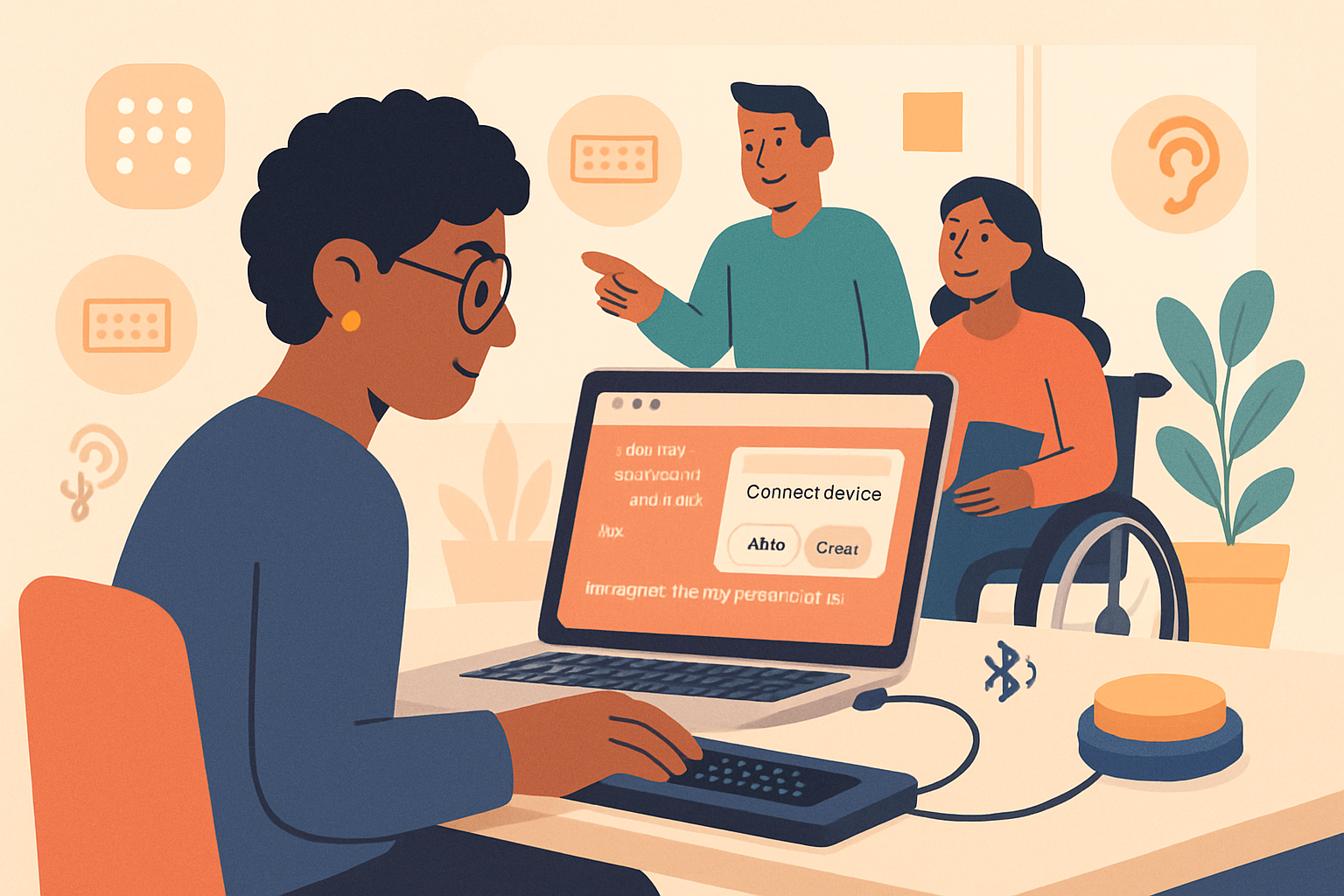
Accessibility is about meeting users where they are. Posture signals can help make content readable and interactions easier when a device is propped, half-folded, or being used as a book.
How to use it
- Automatically enable a high-contrast reading mode when the device is in a low-light, tent-like posture (often used for presentations).
- For two-screen setups used in “book” mode, expose continuous reading across the hinge by reflowing text into two logical columns rather than stretching across the hinge.
- If a device is in a stable desktop-like posture, increase the default focus ring visibility and keyboard shortcuts support.
UX pattern
- Offer a one-tap accessibility toolbar when posture suggests the user prefers a passive reading mode.
Notes
- Respect reduced-motion and other user preferences. Posture-based changes should not override explicit accessibility settings.
Use case 5 - Collaborative and multi-user interactions (shared surfaces)
Why it matters
When a device is folded into a tent or book mode on a table, it becomes a shared surface. The Device Posture API can let apps reframe a single-user interface into a collaborative layout without the user having to tap a “share” button.
How to use it
- A photo annotation app can detect a tabletop portrait posture and immediately show multi-cursor support and simplified sharing controls for nearby participants.
- In video-calling apps, tent mode could trigger an automatic gallery layout to seat more faces comfortably above the hinge, while controls are placed below.
UX pattern
- Use clear affordances: show a banner like “Collaborative mode - tap to invite” rather than switching silently.
Privacy and security considerations
- Treat posture as a contextual signal. Don’t use it to fingerprint users across sites.
- If you send posture telemetry to a server, anonymize and aggregate the data and disclose it in your privacy policy.
- Avoid always-on posture recording. Emit events only when your app needs them (e.g., during an active workout session or a game) and stop listeners when not required.
Engineering best practices
- Feature detection
function supportsDevicePosture() {
  return !!(navigator && navigator.devicePosture);
}- Debouncing (example)
let debounceTimer = null;
function onPostureChange(e) {
  clearTimeout(debounceTimer);
  debounceTimer = setTimeout(() => handlePosture(e.posture), 120);
}- Combine signals
Pair posture with other APIs where appropriate: Screen Orientation, Device Motion, MediaDevices (camera) and input-detection APIs to create robust heuristics.
Testing and QA
- Use emulators and device labs that support foldable simulations.
- Test transitions repeatedly: fold -> unfold -> rotate -> fold differently. Look for layout thrash and focus loss.
- Add logging (locally) to capture posture state transitions so you can reproduce edge cases.
When not to use posture
- Don’t replace explicit user intent. If a user chooses a layout or setting, that choice should win over automatic posture-driven changes.
- Avoid critical decisions (billing flows, legal confirmations) based on posture alone.
Wrap-up: Why this matters now
The Device Posture API unlocks an affordance that traditional web signals couldn’t: physical configuration. That affordance lets you design experiences that understand whether content should be split, simplified, stabilized, or shared. You can make games more tactile, fitness apps more contextual, and reading or collaborative apps more natural.
Try one small experiment today: detect a “book” posture and reflow a complex toolbar into two columns. It’s a tiny change in code. It’s a big change in how your app feels.
Further reading
- WICG Device Posture: https://github.com/WICG/device-posture
- Device Posture introduction (browser team): https://developer.chrome.com/blog/device-posture-api/
- Foldables guidance and responsive patterns: https://web.dev/foldables/