· deepdives · 8 min read
A Deep Dive into WebCodecs: Understanding Codec Selection and Performance Tuning
A practical technical guide to choosing codecs with the WebCodecs API, tuning encoder settings for different use cases, and conducting meaningful performance benchmarks - with examples and an actionable checklist.
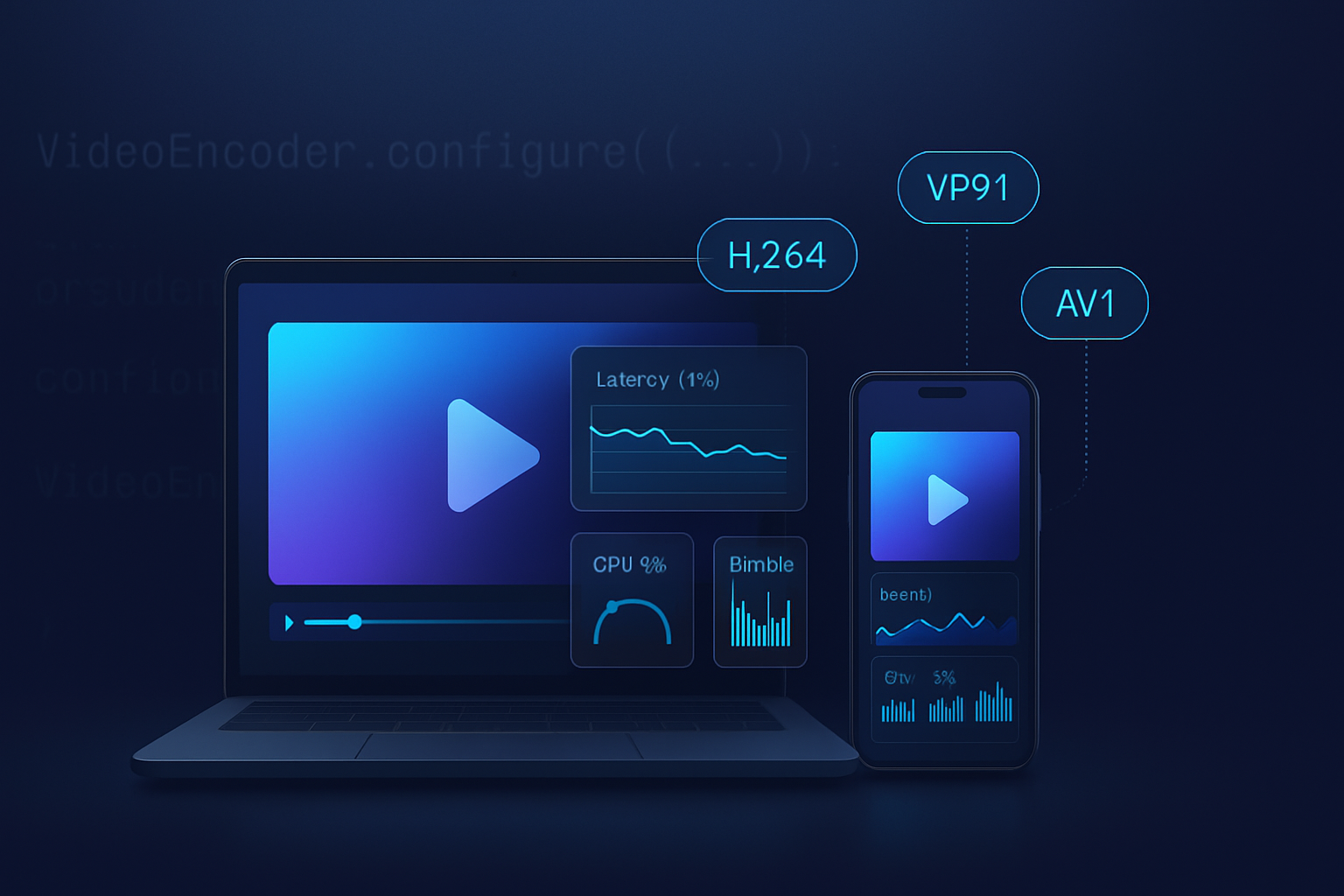
Outcome: by the end of this article you’ll be able to pick the right codec for a given use case, tune encoder settings to hit latency, quality, and CPU targets, and run repeatable benchmarks to prove your choices.
Start here if you need low-latency screen sharing, efficient streaming to many clients, archival-quality recordings, or the best battery-life/CPU trade-offs on mobile.
Why WebCodecs matters - short and concrete
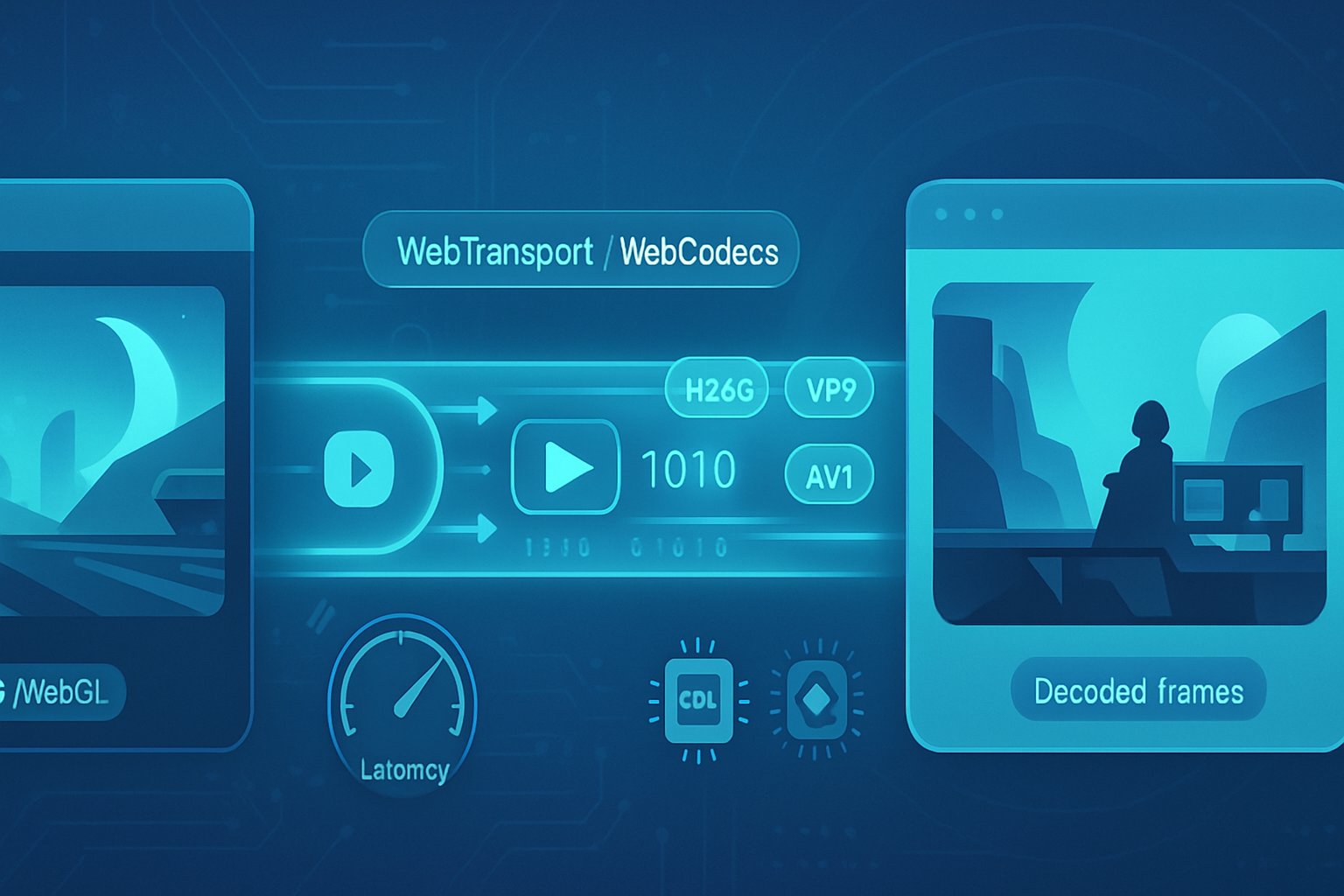
WebCodecs gives you access to low-level browser encoders and decoders for audio and video. That means you can:
- Encode frames with fine-grained control (bitrate, keyframes, profile strings).
- Decode frames and render them to canvases or WebGL with minimal copies.
- Integrate with WebTransport, WebRTC, or custom protocols for streaming.
Because WebCodecs surfaces what’s actually available in the user agent (hardware-accelerated encoders when present, or software fallbacks), codec selection and tuning directly influence CPU, GPU, latency, bandwidth, and perceived quality.
References:
- WebCodecs spec: https://w3c.github.io/webcodecs/
- MDN WebCodecs overview: https://developer.mozilla.org/en-US/docs/Web/API/WebCodecs_API
High-level codec comparison (practical lens)
Before tuning, pick the family that makes sense. Short summaries and when to use them:
H.264 (AVC)
- Pros: ubiquitous hardware acceleration; supported everywhere; low CPU on decode/encode when hardware-accelerated.
- Cons: older compression efficiency than VP9/AV1; licensing for some use cases.
- Use when: maximum compatibility and low CPU on a wide range of devices (especially mobile and older desktops).
VP8
- Pros: simple and low-complexity; good for real-time and low-power scenarios.
- Cons: lower compression efficiency than VP9/AV1; older codec.
- Use when: very low-complexity real-time usage where VP9/AV1 overhead isn’t worth it.
VP9
- Pros: better compression than VP8/H.264 at similar quality; supported in many browsers; some hardware support.
- Cons: encoding complexity higher; hardware support uneven across devices.
- Use when: better bandwidth efficiency than H.264 desired and hardware support exists for target clients.
AV1
- Pros: currently best compression efficiency in many scenarios (especially at lower bitrates).
- Cons: very high encode complexity in software (encoding latency and CPU); hardware encoders are emerging but not universal.
- Use when: maximum bandwidth savings are needed and you can tolerate higher CPU or have hardware AV1 encoders on target clients.
HEVC (H.265)
- Pros: great efficiency; many hardware encoders on modern devices.
- Cons: licensing complexity; uneven browser support.
- Use when: platform-specific apps or controlled clients where HEVC is supported.
Note: actual availability via WebCodecs depends on the browser/OS build and device hardware; the API will fail to create encoders/decoders that the UA does not expose.
Choosing a codec by use case (actionable)
Real-time low-latency communications (e.g., conferencing, remote control):
- Prioritize: low encode latency, small encode queues, hardware acceleration.
- Recommended codecs: H.264 or VP8, depending on client support.
- Tune: lower GOP/keyframe interval, CBR or constrained VBR with low target latency.
Live streaming to many viewers (1:N):
- Prioritize: bandwidth efficiency, decoder CPU at receiver.
- Recommended codecs: H.264 (for compatibility) or VP9/AV1 for better efficiency if clients support them.
- Tune: longer GOPs, VBR with aggressive rate-control, higher CPU acceptable on server-side encoders.
Screen sharing / desktop capture:
- Prioritize: preserving sharp edges/text, low bitrate for rapid changes.
- Recommended codecs: H.264 (in hardware) or VP9 with a tuned settings for screen content.
- Tune: use screen-content-friendly presets if available (lower motion estimation quality, higher intra refresh for text clarity), short keyframe intervals during big layout changes.
Archival recording:
- Prioritize: quality and compression; encoding time less critical.
- Recommended codecs: VP9/AV1 or H.264 (high profile) depending on compatibility requirements.
- Tune: use higher bitrates, slower/quality presets, two-pass encodes (if available outside the browser) - WebCodecs focuses on single-pass, so you may need server-side transcoding for final archive.
Mobile/battery-sensitive scenarios:
- Prioritize: low CPU, hardware encode paths, lower resolutions when acceptable.
- Recommended codecs: H.264 or VP8 where hardware acceleration exists.
- Tune: lower resolution/framerate, conservative bitrate, minimal software post-processing.
WebCodecs encoder knobs (what you can control)
Common VideoEncoder config fields and meaningful tuning knobs:
- codec: codec string (e.g., “avc1.42E01E”, “vp09.00.10.08”, “av01.0.08M.08”) - picks codec + profile
- width / height
- bitrate / bitrateMode (“constant” | “variable”)
- framerate (used for bitrate allocation and encoder heuristics)
- hardwareAcceleration: “prefer-hardware” | “prefer-software”
- avc / av1 specific fields (like format or encoder-specific options when exposed)
Runtime controls:
- encodeQueueSize: how many frames are queued - useful to observe backpressure
- requestKeyFrame(): force immediate keyframe for stream resilience
- adjust bitrate dynamically based on network conditions (WebTransport/WebRTC signals)
Example encoder instantiation (simplified):
const config = {
  codec: 'avc1.4d401f', // H.264 baseline/profile-level string
  width: 1280,
  height: 720,
  bitrate: 2_000_000, // 2 Mbps
  framerate: 30,
  hardwareAcceleration: 'prefer-hardware',
};

const encoder = new VideoEncoder({
  output: handleChunk,
  error: e => console.error('encoder error', e),
});

await encoder.configure(config);

// Later: encoder.encode(videoFrame);
Notes on codec strings: use platform-appropriate codec strings to select profiles and levels - e.g., avc1.42E01E or vp09.00.10.08. See browser docs for details.
Measuring performance - what to record and how
Meaningful metrics:
Latency
- Capture-to-network: time from capture to first byte on the network (or to rendered frame on remote client).
- Encode latency per frame: measure encode start -> encode callback time.
CPU usage
- Hard to measure precisely from the page. You can approximate by measuring total event-loop time vs idle time, or rely on external profiling tools (Chrome Performance tab, OS CPU monitors) for end-to-end.
Throughput / bandwidth
- Average bitrate over windows (1s, 5s), peak bitrate.
Frames dropped / frame rate delivered
- Compare encoded frames vs input frames; measure decode/render frame rate on client.
Visual quality
- Objective metrics: PSNR, SSIM (requires decoded frames to compute). For perceptual quality, subjective evaluation or VMAF where possible.
Suggested measurement approach (in-browser):
- Instrument encode calls with performance.now(): record start and when encoder’s output callback fires.
- Track encoded chunk sizes and timestamps for bitrate calculation.
- Use encodeQueueSize to detect encoder backlog.
- When possible, send encoded data back to a test harness that decodes and computes PSNR/SSIM offscreen.
Example: measuring encode latency (simplified):
const encodeMetrics = [];
function measureEncode(frame) {
  const start = performance.now();
  encoder.encode(frame);
  // in output callback handleChunk, include the start timestamp in metadata
}

function handleChunk(chunk, metadata) {
  const now = performance.now();
  const latency = now - metadata.start;
  encodeMetrics.push(latency);
}
(You need to pass the start value via a closure or map from frame to metadata - the idea is to observe start->output timing.)
Example benchmark (illustrative results)
Below is an example set of results from a controlled test. These numbers are illustrative - your results will vary by device, browser, and workload. The goal is to demonstrate how to interpret measurements.
Test conditions (example):
- Device A: modern laptop with hardware H.264 and VP9 encode support
- Browser: Chromium-based (with WebCodecs enabled)
- Source: 1920x1080 at 30fps, mixed content (static slides + motion)
- Runs: 60-second runs, repeated 3x, averages reported
Example results (averaged):
| Codec | Avg encode latency (ms) | Avg bitrate (kbps) | CPU load (approx) | Quality (SSIM) |
|---|---|---|---|---|
| H.264 | 8 | 2,200 | 12% | 0.93 |
| VP8 | 10 | 2,300 | 15% | 0.91 |
| VP9 | 35 | 1,600 | 30% | 0.94 |
| AV1 | 120 | 1,100 | 80% | 0.95 |
Interpretation:
- H.264 shows low latency and low CPU thanks to hardware encoding - great for interactive use.
- VP9 gives bitrate savings (lower avg bitrate for similar SSIM) at the cost of higher CPU and higher encode latency on this device.
- AV1 shows excellent compression but much higher encode CPU and latency in software.
Key takeaway: pick the codec that matches your latency and CPU budget. If you need sub-20ms per-frame encodes, H.264 or VP8 with hardware acceleration is often the reliable choice right now.
Practical tuning patterns and tips
Prefer hardware acceleration when latency or battery matters
- Use config.hardwareAcceleration = ‘prefer-hardware’. But validate availability - if the UA falls back to software, your CPU profile will change.
Keep encodeQueueSize low for interactive apps
- When encodeQueueSize grows, you’re accumulating frames and increasing end-to-end latency. Drop or skip frames if queue grows beyond a threshold.
Adapt bitrate and resolution to network conditions
- Lower resolution or framerate first if CPU or network are constraints. Reducing resolution often buys more efficiency than lowering quality at the same resolution.
Manage keyframe frequency based on error resilience
- Shorter keyframe intervals improve recovery after packet loss but increase bitrate. Use dynamic keyframe requests during layout changes.
Choose bitrate mode wisely
- CBR or constrained VBR for predictable bandwidth usage (live streaming). Variable modes for best visual quality if you can tolerate bitrate spikes.
For screen content, prefer intra refresh / screen-specific presets
- Some encoders expose options optimized for screen content (less motion estimation, more emphasis on preserving edges). If available, enable them.
Test on representative client devices
- A desktop with hardware encoders is very different from a mid-range Android phone. Benchmark on the slowest target device you must support.
Use client-side signaling to determine supported codecs/profiles
- Negotiate codecs based on capability detection (tryCreateEncoder/decoder where supported or use UA/device heuristics).
Building a repeatable benchmark suite (checklist)
- Define realistic content: include static slides, fast motion, and mixed scenes.
- Fix input (same sequence of frames) across runs for deterministic comparison.
- Automate runs and collect raw encoded bytes and timestamps.
- Compute bitrate windows (1s/5s) and encode latency distributions (p50/p95/p99).
- Compute objective quality (PSNR/SSIM) on decoded frames when possible.
- Record system state: CPU model, OS, browser version, GPU, thermal conditions.
- Repeat across target devices and browsers.
Troubleshooting common gotchas
- Encoder not available: UA may not expose your desired codec. Fallback gracefully.
- Unexpected software fallback: hardwareAcceleration is a hint, not a guarantee. Measure encode latency to confirm.
- High memory / queue growth: implement backpressure and frame-dropping policies.
- Mismatched codec string: profile/level mismatch leads to configure failures - verify exact codec string supported by the UA.
Quick recommendation cheat sheet
- Interactive conferencing (mobile + desktop): H.264 (hardware), keyframe interval 1–2s, low CBR or constrained VBR, keep encodeQueueSize < 3.
- Screen share (text heavy): H.264 or VP9 with screen presets; force keyframes on layout change; moderate bitrate + higher intra refresh.
- One-to-many live streaming: VP9/AV1 (if clients supported) for bandwidth efficiency; longer GOPs, VBR.
- Archival: AV1/VP9 for compression if encoding time is acceptable; otherwise high-quality H.264.
Final thoughts
WebCodecs unlocks a new level of control for media on the web - but control means responsibility. Choose the codec that matches your user base and constraints. Measure, iterate, and test on real devices. Optimize the things that matter most for your scenario: latency, battery, bandwidth, or quality.
Use the checklist above to create repeatable, comparable benchmarks. When in doubt, start with H.264 for compatibility and then selectively adopt VP9/AV1 where the cost/benefit makes sense.
References
- WebCodecs W3C spec: https://w3c.github.io/webcodecs/
- MDN: WebCodecs API: https://developer.mozilla.org/en-US/docs/Web/API/WebCodecs_API