· deepdives · 6 min read
Async Clipboard vs Traditional Clipboard: What's the Difference?
Compare the modern Async Clipboard API and the older execCommand/document-based clipboard methods. Learn when to use each, how to implement reliable fallbacks, browser support, performance and security trade-offs, plus practical code examples for text and images.
What you’ll learn and why it matters
By the end of this article you’ll know when to use the Async Clipboard API, how to implement reliable fallbacks for older browsers, and how to avoid common security and UX pitfalls when reading from or writing to the clipboard. Quick wins first: the Async Clipboard API is more capable and less brittle. Use it when you need reliable, non-blocking copy/paste and richer data (HTML, images, files). But for widest compatibility, feature-detect and fall back to traditional approaches.
Quick comparison - at a glance
Async Clipboard API (navigator.clipboard)
- Async (promise-based): non-blocking, scales better for larger data.
- Supports text, HTML, images and files (ClipboardItem) where implemented.
- Requires secure context (HTTPS) and often a user gesture.
- Has a permission model; some reads may prompt the user.
Traditional clipboard methods (document.execCommand, copy event handlers)
- Synchronous, based on DOM selection and events.
- Works in many older browsers but is hacky and limited (mostly text).
- Less predictable, can fail silently; easier to implement for basic copy.
Strong point: Async Clipboard is the modern, safer, and more capable choice - but fallbacks are still essential if you need broad browser support.
Why asynchronous matters
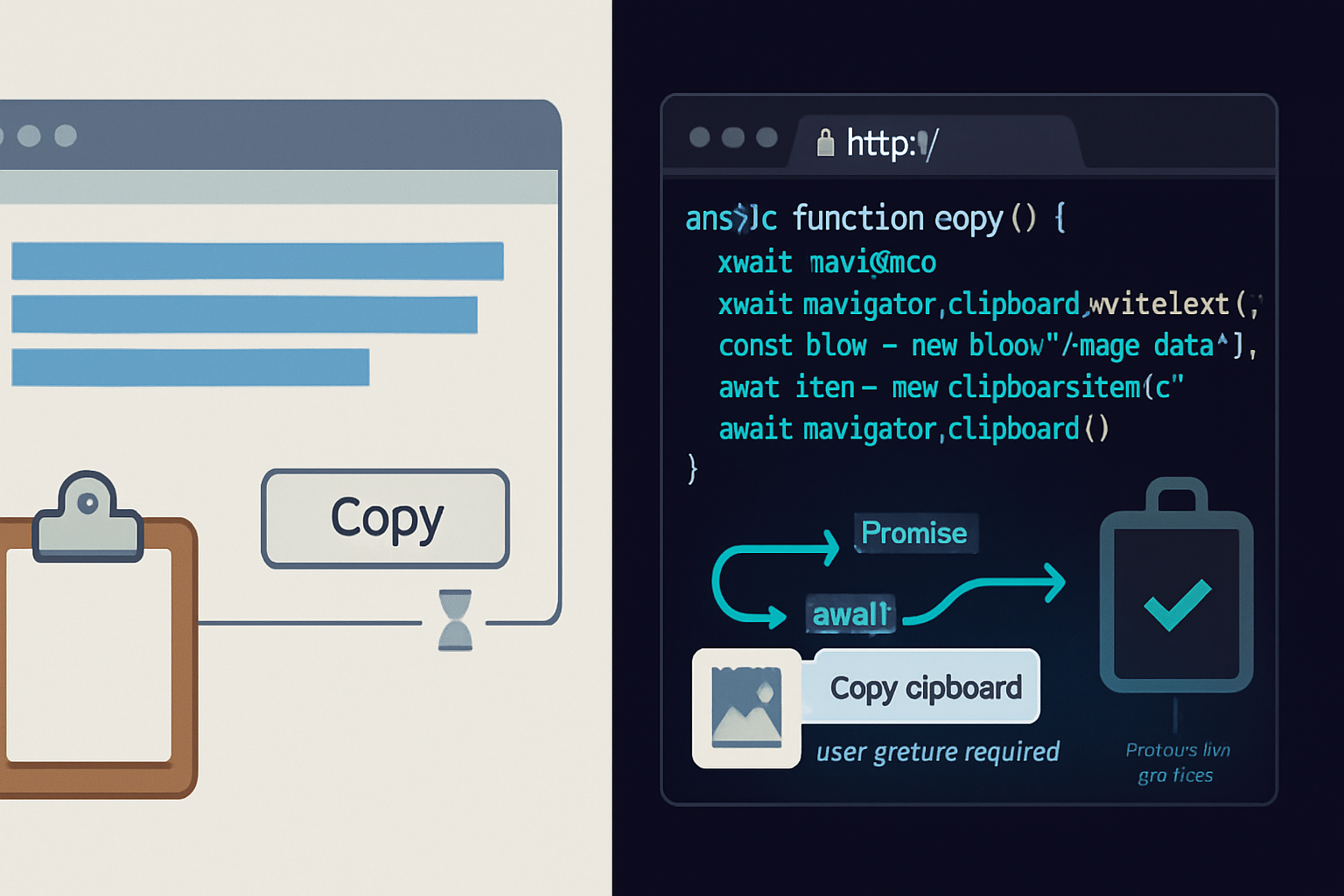
Synchronous clipboard operations (like creating a selection and calling document.execCommand(‘copy’)) block the main thread while the browser performs the action. That’s fine for tiny text snippets. But when you copy blobs, images, or perform more complex handling, blocking leads to poor responsiveness. The Async Clipboard API returns Promises. It hands off work to the browser and keeps your UI responsive. This difference becomes obvious with larger payloads and complex permission flows.
Practical examples
Below are concise examples that you’ll be able to paste into your app. They feature feature-detection and fallbacks.
Copy text - Async with execCommand fallback
async function copyText(text) {
  if (navigator.clipboard && navigator.clipboard.writeText) {
    try {
      await navigator.clipboard.writeText(text);
      return true;
    } catch (err) {
      console.error('Async clipboard write failed', err);
      // fall through to fallback
    }
  }

  // Fallback (older browsers)
  const el = document.createElement('textarea');
  el.value = text;
  el.setAttribute('readonly', '');
  el.style.position = 'absolute';
  el.style.left = '-9999px';
  document.body.appendChild(el);
  el.select();

  try {
    const ok = document.execCommand('copy');
    document.body.removeChild(el);
    return ok;
  } catch (err) {
    document.body.removeChild(el);
    console.error('execCommand copy failed', err);
    return false;
  }
}
This pattern: try the modern API first, and if it fails, do a DOM-based fallback. The fallback is synchronous and brittle (it depends on selection and may be blocked in some environments), but it supports many legacy browsers.
Read and write images or files (Async-only)
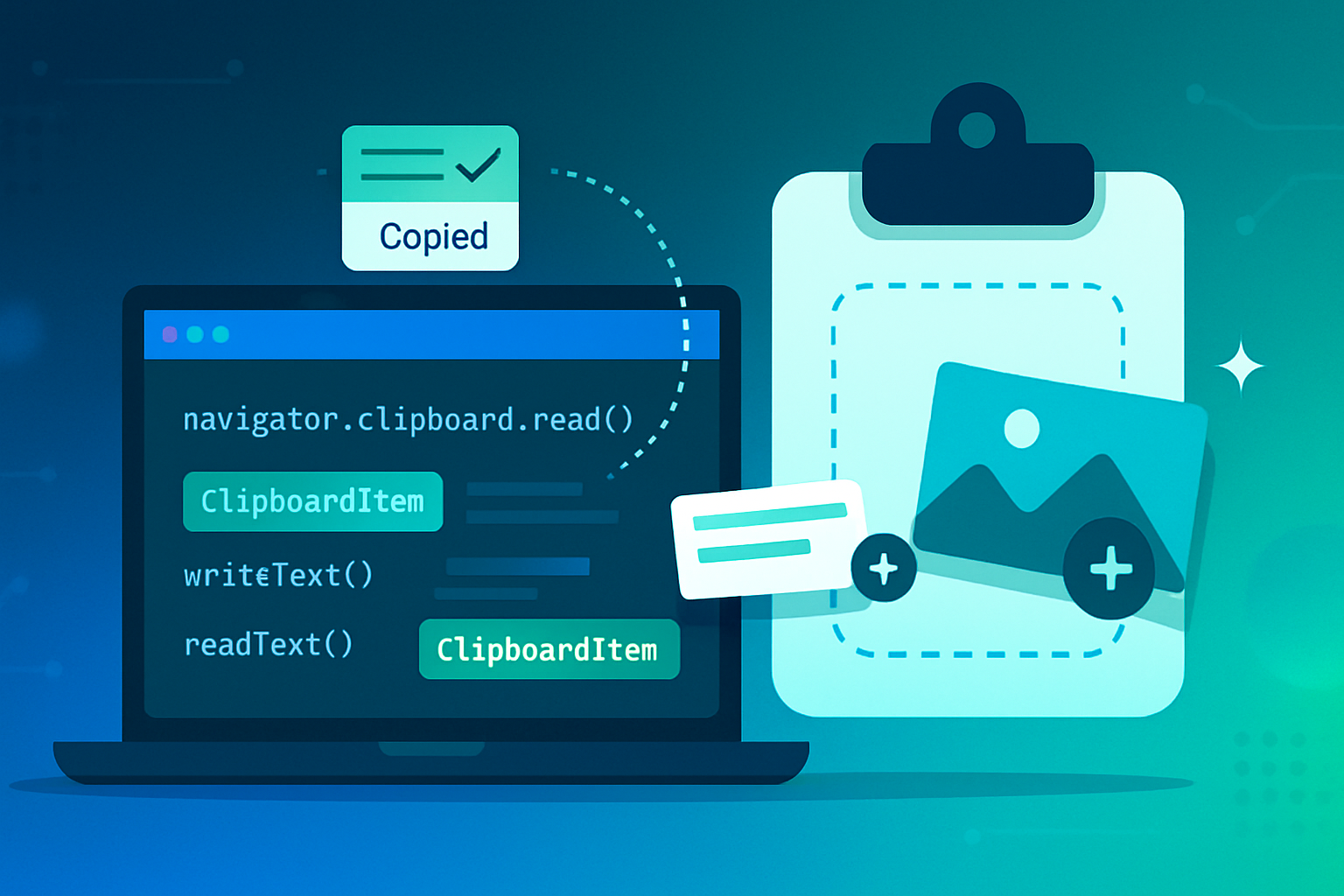
The Async Clipboard API introduced a richer model that can transfer images and arbitrary files via ClipboardItem objects. This is not possible with execCommand.
// Write an image (Blob) to the clipboard
async function writeImageBlobToClipboard(imageBlob, mimeType = 'image/png') {
  // ClipboardItem requires the clipboard write capability
  const item = new ClipboardItem({ [mimeType]: imageBlob });
  await navigator.clipboard.write([item]);
}

// Read image(s) from clipboard
async function readImagesFromClipboard() {
  const items = await navigator.clipboard.read(); // returns ClipboardItem[]
  const imageBlobs = [];
  for (const item of items) {
    for (const type of item.types) {
      if (type.startsWith('image/')) {
        const blob = await item.getType(type);
        imageBlobs.push({ type, blob });
      }
    }
  }
  return imageBlobs; // array of {type, blob}
}
Note: reading or writing images typically requires an explicit user gesture and may prompt for permission.
Permissions, gestures and security
- Secure context: navigator.clipboard is available only over HTTPS (except on localhost).
- User gesture: Many browsers require the clipboard operation to be initiated by a user gesture (click, keypress). This prevents silent clipboard access from background scripts.
- Permissions API: You can query some clipboard permissions with navigator.permissions.query({ name: ‘clipboard-read’ }) or { name: ‘clipboard-write’ } (behaviors vary by browser). See MDN for specifics.
These constraints are intentional. Reading the clipboard is a high-privacy action (it could contain secrets). Browsers gate it with user-driven flows and sometimes prompts.
Helpful links: MDN’s Clipboard API docs and Permissions API:
- https://developer.mozilla.org/docs/Web/API/Clipboard_API
- https://developer.mozilla.org/docs/Web/API/Permissions_API
Browser support and reality check
Support varies by browser and by feature within the API (readText/writeText vs read/write with ClipboardItem). Always feature-detect and be conservative.
Useful reference: Can I Use clipboard API summary: https://caniuse.com/clipboard
As of recent browser versions: modern Chromium-based browsers (Chrome, Edge, Opera) provide the most complete implementation, including ClipboardItem for images. Firefox supports writeText/readText broadly, but richer read/write features have historically lagged or required flags. Safari has improved support but can impose stricter gesture and permission behaviors. Always check the current compatibility tables before shipping advanced flows.
Performance considerations
- Async API: non-blocking, can handle larger payloads (images/files) without freezing the UI. Promises make composition nicer with async/await.
- execCommand: synchronous and quick for short, simple text copies, but cannot handle files or complex types and may cause layout thrashing when you manipulate DOM to create selection.
If you only copy tiny text snippets and must support very old browsers, execCommand is pragmatic. For any non-trivial clipboard work, Async is the way to go.
UX and privacy best practices
- Only read from the clipboard in direct response to an explicit user action.
- Explain why you need clipboard access if your flow might prompt the user. A simple label like “Paste an image from your clipboard” reduces confusion.
- Avoid surprising writes. Don’t overwrite users’ clipboard silently unless they expect it (for example, they clicked a “Copy link” button).
- Sanitize and inspect pasted content before inserting it into the DOM (XSS risk from HTML clipboard data).
Fallback strategies and progressive enhancement
- Feature-detect: if navigator.clipboard exists and supports the methods you need, use it.
- For writeText/readText, provide execCommand/textarea fallback for older browsers.
- For advanced functionality (images, files), degrade gracefully: show an upload field or accept drag-and-drop for users where advanced clipboard features are unavailable.
Example feature detection:
const supportsAsyncText = !!(
  navigator.clipboard &&
  navigator.clipboard.writeText &&
  navigator.clipboard.readText
);
const supportsAsyncRead = !!(navigator.clipboard && navigator.clipboard.read);
Typical pitfalls and how to avoid them
- Assuming navigator.clipboard.read() works everywhere: it doesn’t. Feature-detect and provide fallback UX.
- Calling clipboard read outside of user gesture: many browsers will reject or prompt unexpectedly. Wrap such calls in a click/keydown handler.
- Forgetting secure context: your code will silently fail on plain HTTP.
- Not handling permissions errors: always wrap clipboard calls in try/catch and provide user-friendly messages.
When to prefer each approach (decision guide)
Use Async Clipboard API when:
- You need to copy or paste non-text data (images or files).
- You want non-blocking operations and cleaner async code.
- You target modern browsers and can require HTTPS/user gestures.
Use Traditional (execCommand) when:
- You need maximum compatibility for basic text copy on legacy browsers.
- Your use-case is simple: small text snippets and minimal UX risk.
Hybrid approach (recommended for many apps): try Async first and fall back to DOM-based copy for text if Async is unavailable.
Conclusion
The Async Clipboard API is a clear upgrade: richer data types, promise-based flow, and a cleaner developer experience. But browser support and permission constraints mean you should design for progressive enhancement. Feature-detect. Fail gracefully. Explain to users when you need permissions. And always prefer non-blocking clipboard operations when possible - they make your app feel faster and behave more reliably.
References
- MDN - Clipboard API: https://developer.mozilla.org/docs/Web/API/Clipboard_API
- Can I Use - Clipboard API overview: https://caniuse.com/clipboard