· deepdives · 8 min read
Beyond the Screen: Innovative Uses for the Presentation API in Virtual Reality Environments
Explore how the Web Presentation API can be used to bridge 2D web controls and full VR experiences. This article covers practical projects, code samples, integration tips, fallbacks, and performance strategies for building richer, lower-friction immersive web apps.
What you’ll achieve
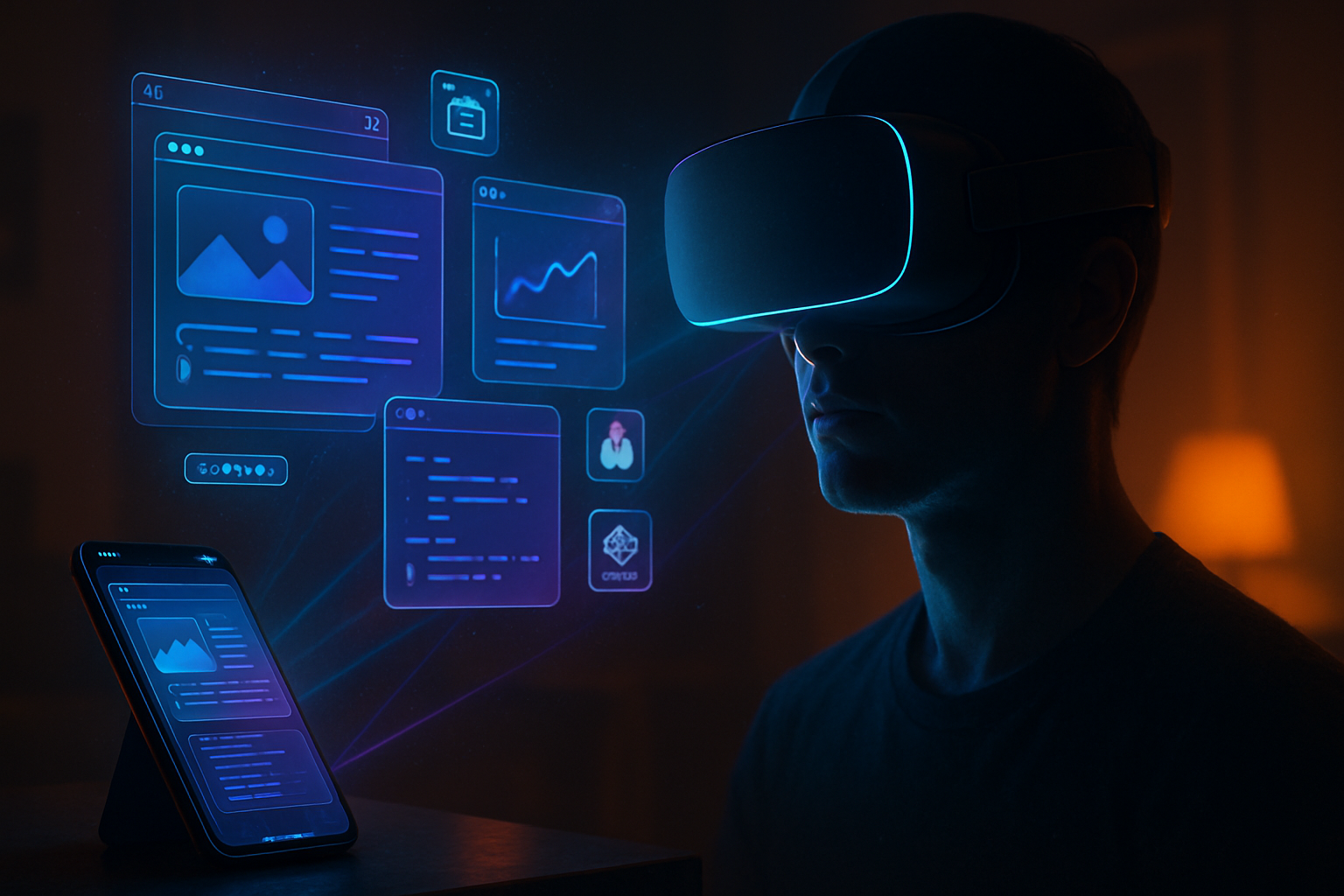
In the next 10–15 minutes you’ll learn how to use the Web Presentation API to connect ordinary web pages to immersive VR experiences. You’ll get hands-on projects, ready-to-use code patterns, and practical tips for combining Presentation API, WebXR, and WebRTC so you can: pair a phone as a controller, cast live UIs into a headset, and build collaborative VR tools that keep latency low.
Short. Practical. Actionable. And focused on outcomes.
Why the Presentation API matters for VR
The Web Presentation API lets one browsing context request that another browsing context present a web page (a receiver). That classic cast-style pattern is designed for secondary displays - and that turns out to be a powerful primitive for VR scenarios:
- Pair a mobile device as a remote controller for a headset’s VR session.
- Push a 2D HUD, menu, or video into an immersive scene without rebuilding it inside the headset browser.
- Create an audience (spectator) experience by presenting a mirrored view on an external display.
Note: Presentation API is not a replacement for WebXR. It’s complementary. Use Presentation API to orchestrate and connect UIs; use WebXR for native-like rendering and device pose/input in the headset.
References: the W3C spec and MDN docs are useful starting points - see the links below for API shapes and caveats.
- W3C Presentation API: https://www.w3.org/TR/presentation-api/
- MDN Presentation API overview: https://developer.mozilla.org/en-US/docs/Web/API/Presentation_API
- WebXR Device API: https://developer.mozilla.org/en-US/docs/Web/API/WebXR_Device_API
High-level patterns for VR + Presentation API
- Controller Pattern
- The mobile browser (controller) calls PresentationRequest.start() to open a receiver page in the headset or on another display.
- The controller sends control messages (select/gesture/state) via the PresentationConnection.
- The receiver consumes those messages to control the VR scene.
- HUD / UI-as-a-Texture Pattern
- Present a 2D UI page and stream its canvas/video into the headset.
- In the headset, use the presented content as a texture (video/canvas) in the WebXR scene.
- Spectator / Multi-View Pattern
- Present a mirrored view of the VR camera to a conference room display, or let multiple controllers connect to the same receiver.
- Collaborative Receiver Pattern
- Multiple controllers present to the same receiver (or different receivers) and synchronize via shared messages or a central server (WebSocket/WebRTC).
Each pattern relies on message passing and well-planned fallbacks.
Quick reference: Presentation API basics (code)
Controller (initiator) page:
if ('PresentationRequest' in window) {
  const req = new PresentationRequest('/receiver.html');
  req
    .start()
    .then(connection => {
      connection.onmessage = e => console.log('from receiver', e.data);
      // send a JSON command
      connection.send(JSON.stringify({ type: 'select', id: 'artwork-3' }));
    })
    .catch(err => console.error('Presentation start failed', err));
} else {
  // fallback: use WebSocket/WebRTC directly
}
Receiver page (hosted at /receiver.html):
if ('presentation' in navigator && navigator.presentation.receiver) {
  navigator.presentation.receiver.connectionList.then(list => {
    list.connections.forEach(conn => {
      conn.onmessage = e => handleIncoming(JSON.parse(e.data));
      conn.send('ready');
    });
  });
}

function handleIncoming(cmd) {
  // integrate with your WebXR scene or UI
}
Note: browser support is limited and behaviors differ. Always feature-detect and provide alternative channels for critical flows.
Hands-on project 1 - Phone-as-VR controller (simple)
Goal: Use the phone to select objects in a VR scene running in a headset browser.
How it works (overview):
- The headset hosts the VR scene (WebXR + three.js). It also serves receiver.html which listens for Presentation connections.
- The phone acts as the controller (initiator) and opens receiver.html via PresentationRequest.start().
- The phone sends JSON commands like
move,select,menu-toggleto the receiver. The receiver maps these commands to scene actions.
Receiver-side mapping (pseudo):
// in receiver when controlling VR scene
conn.onmessage = e => {
  const msg = JSON.parse(e.data);
  switch (msg.type) {
    case 'point':
      scene.cursor.setFromNormalizedCoords(msg.x, msg.y);
      break;
    case 'select':
      scene.selectObject(msg.id);
      break;
  }
};
Controller UI tips:
- Use simple gestures: swipe to rotate, tap to select.
- Use haptic feedback on the phone to confirm actions.
Why this is powerful: the phone can present a richer UI (rich forms, auth screens, camera input) and the headset remains focused on immersion.
Hands-on project 2 - Live HUD inside VR via canvas streaming
Goal: Render a complex HTML/CSS interface on a separate page and show it as an in-world panel inside the VR scene.
Approach A: captureStream() + video texture
- The receiver page hosts an offscreen
- The canvas provides a MediaStream with canvas.captureStream().
- In the VR scene, create a
Receiver snippet:
const canvas = document.getElementById('uiCanvas');
const stream = canvas.captureStream(30); // 30 FPS
// send this stream to the headset's scene via WebRTC or keep local if the receiver runs inside the headset
If the receiver is the headset, you can directly use the canvas or the video texture. If the receiver is remote, use WebRTC to stream the canvas.
Approach B: WebRTC directly between controller and headset
- Use WebRTC to create a low-latency video track of the UI and bind it to a
Useful links: WebRTC overview: https://developer.mozilla.org/en-US/docs/Web/API/WebRTC_API
Performance tips:
- Aim for 30–60 FPS; reduce resolution for remote streams to lower bandwidth.
- Preserve aspect ratio to avoid UI distortion inside the 3D scene.
Hands-on project 3 - Collaborative whiteboard inside VR
Goal: Multiple controllers (phones and desktops) edit a shared 2D whiteboard presented inside a VR world. Changes appear in real time in the headset.
Architecture:
- Use a tiny signaling server and WebSocket (or WebRTC datachannels) for sync.
- The whiteboard page is presented to the headset via Presentation API or hosted as the receiver itself.
- Each controller sends strokes and object updates to the server; the receiver applies them and re-renders.
Why this pattern scales:
- Presentation API gives you the low-friction connection UX for initial pairing.
- WebSockets / WebRTC handle real-time synchronization between arbitrary clients.
Implementation notes:
- Use an operational transform (OT) or CRDT library (YJS, Automerge) for conflict-free collaboration.
- Keep stroke history small; compress vector data (e.g., polyline simplification) before sending.
Practical integration tips and best practices
- Feature detection and graceful fallback
- Don’t assume Presentation API availability. If missing, fallback to WebRTC/WebSockets with a QR-code pairing workflow.
const supportsPresentation =
'PresentationRequest' in window && 'presentation' in navigator;- Use postMessage / connection.send for control messages
- Keep messages small and typed. Use JSON with
typefields. - Example:
{ type: 'select', id: 'obj-12', timestamp: 1670000000 }.
- Mind permissions and user gestures
- Many presentation actions require a user gesture to start (click/tap). Plan your UX accordingly.
- Latency and bandwidth
- For control messages, keep payloads tiny (bytes). For video/texture streaming, prefer WebRTC with hardware-accelerated codecs.
- Use adaptive bitrate and lower resolution for spectators.
- Input mapping between pointer/gesture spaces
- Map normalized 2D coordinates from the controller to the headset scene.
- When possible, expose hit-test APIs in the headset for precision selection.
- Security and origin policies
- PresentationReceiver usually enforces same-origin rules or user consent. Protect receiver endpoints and validate messages on both ends.
- Leverage OffscreenCanvas when rendering heavy UIs
- OffscreenCanvas can render in a worker and reduce main-thread load. See MDN: https://developer.mozilla.org/en-US/docs/Web/API/OffscreenCanvas
- Testing across devices
- Test on the actual headset browsers (Quest Browser, Chrome for Android, etc.). Emulators are helpful but miss hardware quirks.
Performance checklist for VR presentations
- Profile the receiver and keep main-thread time low.
- Use hardware-accelerated video paths (WebRTC/h264/vp8/VP9) for streamed textures.
- Reduce texture size for distant HUD elements; use mipmapping wisely.
- Batch messages or coalesce high-frequency events (e.g., pointer move) to avoid jitter.
Deployment and UX considerations
- Provide a clear pairing flow: QR codes, short links, or NFC for headset pairing.
- Communicate connection state to users: connecting, connected, disconnected, degraded.
- Accessibility: make sure a presented UI can be operated with screen readers when appropriate (for 2D fallback).
When not to use the Presentation API
- If you need sub-10ms remote input and are forced to stream video at high fps from a remote renderer, prefer a WebRTC optimized pipeline and direct datachannels for inputs.
- If the headset’s browser does not support Presentation API reliably. In that case, rely on explicit WebSocket/WebRTC pairings.
Example end-to-end sketch (controller → receiver → WebXR texture)
- Controller: calls PresentationRequest.start(‘/receiver.html’)
- Receiver: accepts connection, spawns an OffscreenCanvas or
- Receiver: captures canvas to a MediaStream or encodes it via WebRTC
- WebXR scene: in the headset, create a
- Controller: sends small JSON commands via PresentationConnection.send() for interactive elements
This mixes the UX simplicity of Presentation API with the rendering capabilities of WebXR.
Tools and libraries to speed development
- three.js - for WebXR scenes and VideoTexture primitives: https://threejs.org/
- Simple-Peer or native RTCPeerConnection - for WebRTC links
- Yjs / Automerge - for collaborative CRDT sync
- Localtunnel / ngrok - for testing device-to-device flows behind NAT
Final thoughts
The Presentation API gives you a low-friction way to bridge the 2D web and immersive VR. Use it to delegate UI complexity to familiar web pages, pair controllers without heavy setup, and stitch devices together quickly. But plan fallbacks: not all headsets and browsers have identical implementations. When you combine Presentation with WebRTC, WebXR, and OffscreenCanvas, you unlock patterns that let ordinary phones and desktops become native-feeling VR peripherals.
Start small: a phone that toggles menus in VR. Then scale to full collaborative whiteboards and spectator streams. The web is the glue - and with the right architecture, the presentation layer becomes a seamless part of the immersive experience.
Build for the user first. Then optimize for latency. And finally, let the web bring more creative UIs into VR than ever before.