· deepdives · 7 min read
Controversy of Color: How the EyeDropper API Challenges Traditional Design Tools
A deep look at the EyeDropper API's rise, the debate it sparks with established design tools, and practical guidance for designers and developers who want web-native color sampling without sacrificing accuracy, accessibility, or workflow coherence.
What you’ll get from this article
By the end you’ll understand why the EyeDropper API has stirred debate, what it does well, where it falls short compared to classic design tools (like Figma, Sketch, Photoshop and OS color pickers), and concrete ways to use it in production without surprising users or breaking design systems.
Short version: the EyeDropper API makes color sampling on the web trivial. But it doesn’t replace the nuance-color management, UX refinements and cross-platform consistency-that designers rely on. Read on to see how to close that gap.
Quick primer: What is the EyeDropper API?
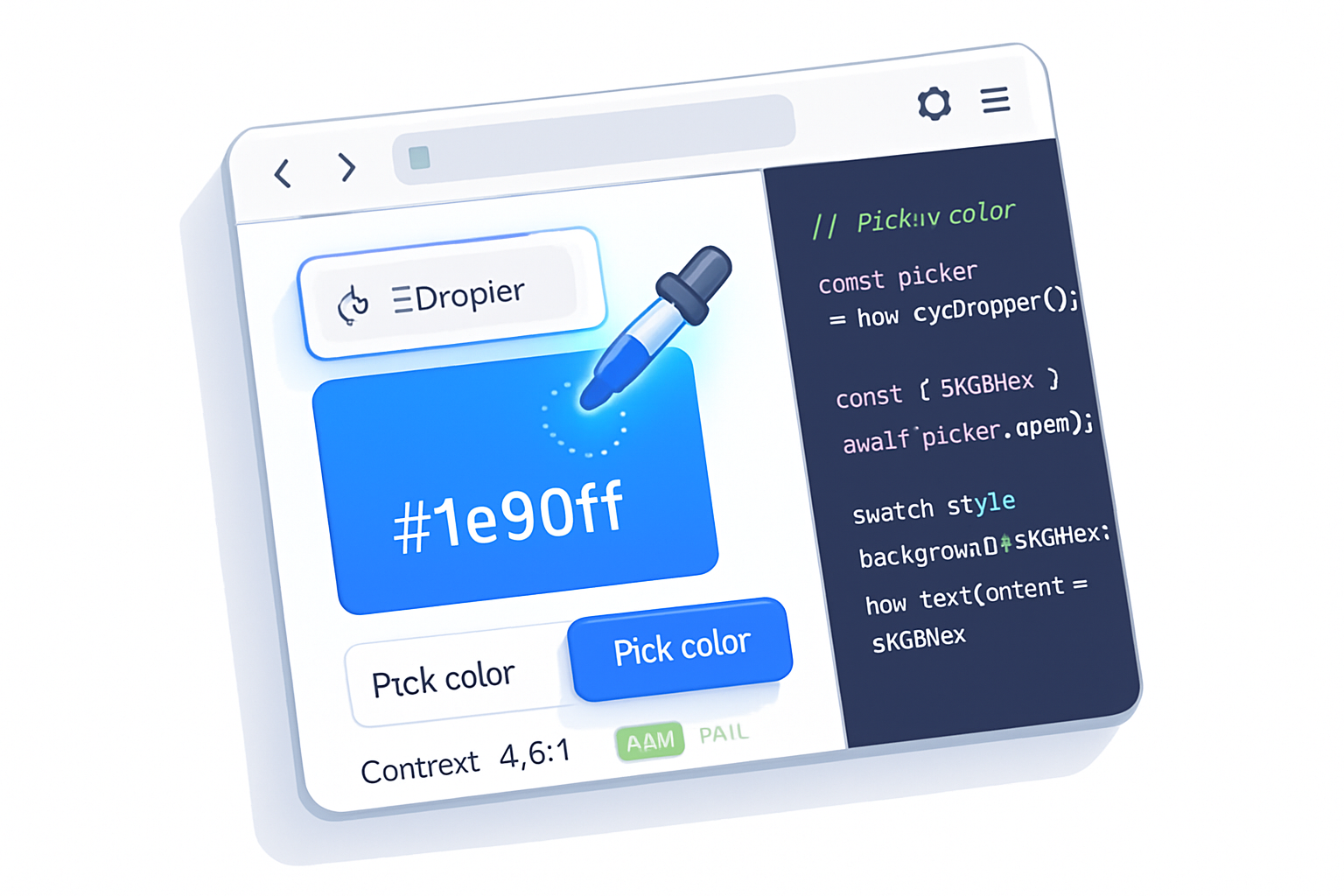
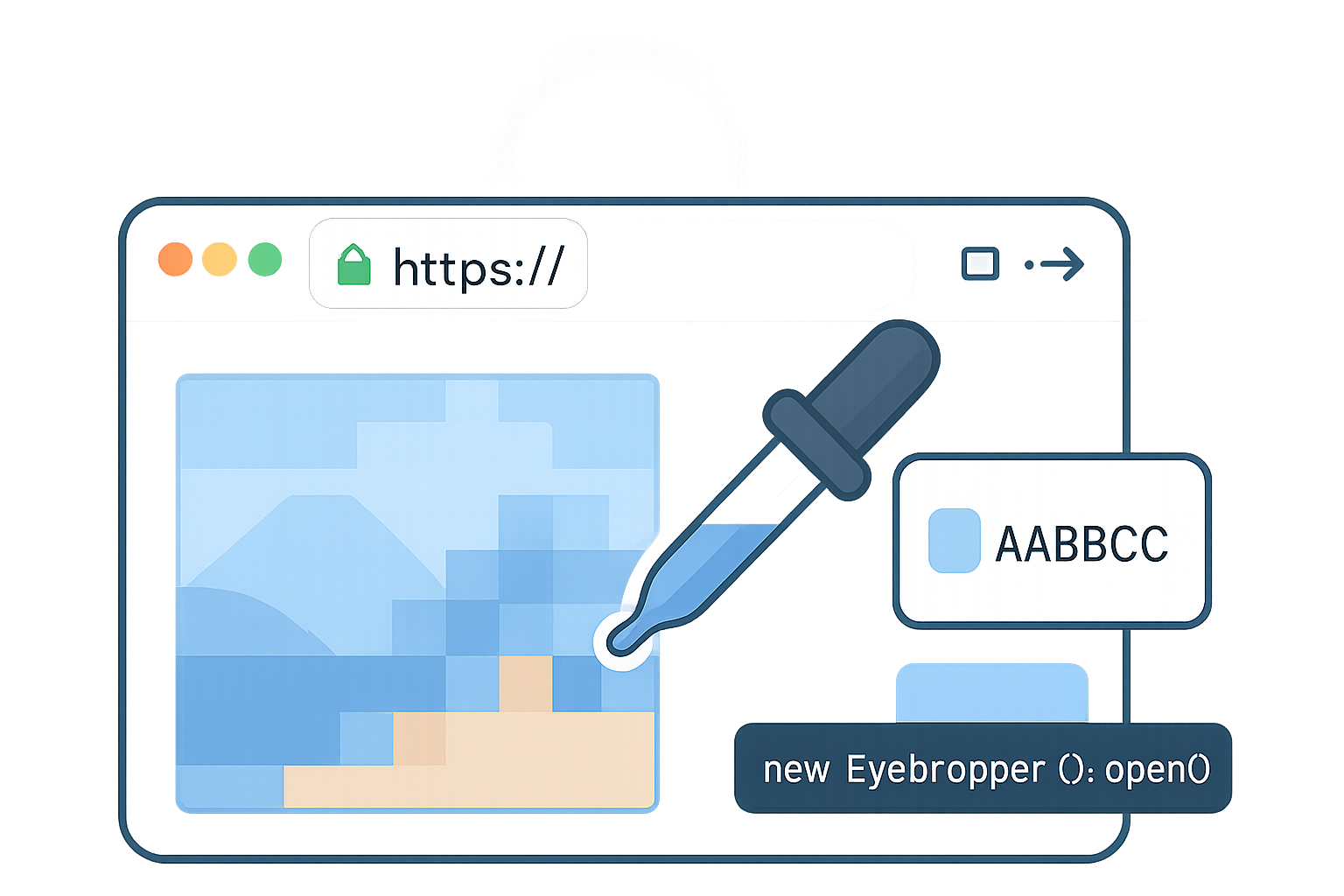
The EyeDropper API is a small Web API that lets a web page open a native color-sampling UI and return a picked color to JavaScript. It is available to secure contexts and requires a user gesture to invoke. When called, it returns an object containing an sRGB hex value (sRGBHex), e.g. “#1a73e8”.
- Official explainer and repository: the WICG EyeDropper repo (explainer and discussions) is useful for implementation context.
- Documentation on MDN covers the API shape and usage examples.
(See the references at the end for direct links.)
Why the controversy?
At first glance the dispute is simple: designers get a new, web-native tool that looks like a win. But the debate runs deeper and centers on four core tensions:
- Accuracy and color management.
- Privacy and security.
- UX and feature parity with established tools.
- Platform and browser fragmentation.
Each of these causes practical trade-offs for teams deciding whether to adopt the API in production apps.
Pros: What EyeDropper brings to the table
- Instant web-native color sampling: No plugin, no external app. A web app can let users sample color right from the screen and ingest it into CSS variables, design tokens or export formats.
- Lower friction for end-users: Users don’t need to copy a color from a screenshot into a native app; a single click is often enough.
- Simpler developer integration: The API is tiny and easy to wire into existing apps.
- Encourages creative web workflows: Designers and non-designers can capture colors from webpages, images and other content without switching tools.
These advantages make it especially attractive for light-weight design tools, CMSs, theme editors and developer-facing playgrounds.
Cons and limitations (the reasons many designers are cautious)
- Color space and fidelity
- The API returns an sRGB hex string. Wide-gamut displays and color-managed images (Display P3, AdobeRGB, ProPhoto) can carry colors that don’t map cleanly to sRGB. That means what you pick may not match what a designer expects in a color-managed native app.
- Traditional design tools expose color profiles and let you pick in different color spaces; EyeDropper collapses that nuance unless your app explicitly manages conversions.
- Limited sampling features
- Built-in magnifiers, crosshairs, averaging, eyedropper history, palettes and multi-pixel sampling are standard in apps like Photoshop and Figma. EyeDropper provides only a single sample; you must build extras yourself.
- Browser and platform inconsistency
- Support differs by browser and version. Relying on EyeDropper without feature detection and fallbacks will create uneven experiences.
- Different browsers may implement UI differences (e.g., whether the picker can sample outside the tab, whether it shows a magnifier), which affects parity.
- Privacy and security concerns (real, but mitigated)
- Sampling screen pixels sounds sensitive. Browsers mitigate this by requiring secure contexts and a user gesture to open the picker. Still, the idea that a page can sample colors from screen content raises eyebrows and requires careful UX so users understand what they’re consenting to.
- No native color metadata
- EyeDropper gives a color value, but not image metadata such as embedded ICC profiles or exact pixel provenance. That can break workflows that rely on preserving profile information.
How EyeDropper compares to traditional tools
- Photoshop / Sketch / Figma: These tools provide color space choice, precise color management, history/palettes and detailed UI (magnifier, sampling radius, multi-sample). They are design-first.
- OS color pickers: System pickers are consistent with OS-level color management and may offer better fidelity on wide-gamut displays.
- EyeDropper API: Web-first, minimal, lightweight. Great for fast capture and integration into web flows; not a replacement for professional color work.
In short: EyeDropper complements rather than replaces professional design tools. It lowers barriers for web-native color capture but does not match the depth of desktop design suites.
Real-world implications for designers and teams
- Rapid prototyping: Web apps can let stakeholders choose brand colors from screenshots during a review call-no Photoshop required.
- Design-to-code friction: Developers can wire picked colors straight into CSS variables or theme JSON. That speeds handoff.
- Inconsistent tokens: If designers pick with a wide-gamut tool and developers use EyeDropper (sRGB), color drift can sneak into the product unless your team standardizes a color workflow.
- Accessibility risk: A picked color may look fine to an eye but fail WCAG contrast checks. EyeDropper doesn’t do contrast checks for you.
Practical recommendations and best practices
- Feature-detect and fall back
Always check availability with feature detection. Example:
if ('EyeDropper' in window) {
  // safe to call new EyeDropper()
} else {
  // fallback to custom color picker UI or instruct user to use system picker
}- Make the user intent explicit
Open the picker only in direct response to a clear user action (click a “Pick color” button). Describe what will happen so users aren’t surprised.
- Convert and surface color spaces
Since EyeDropper returns sRGB hex, convert and present other formats (rgba, hsla) and approximate conversions for wider gamuts if you support them. If your product uses Display P3, document the conversion and test on wide-gamut displays.
- Offer UX parity for power users
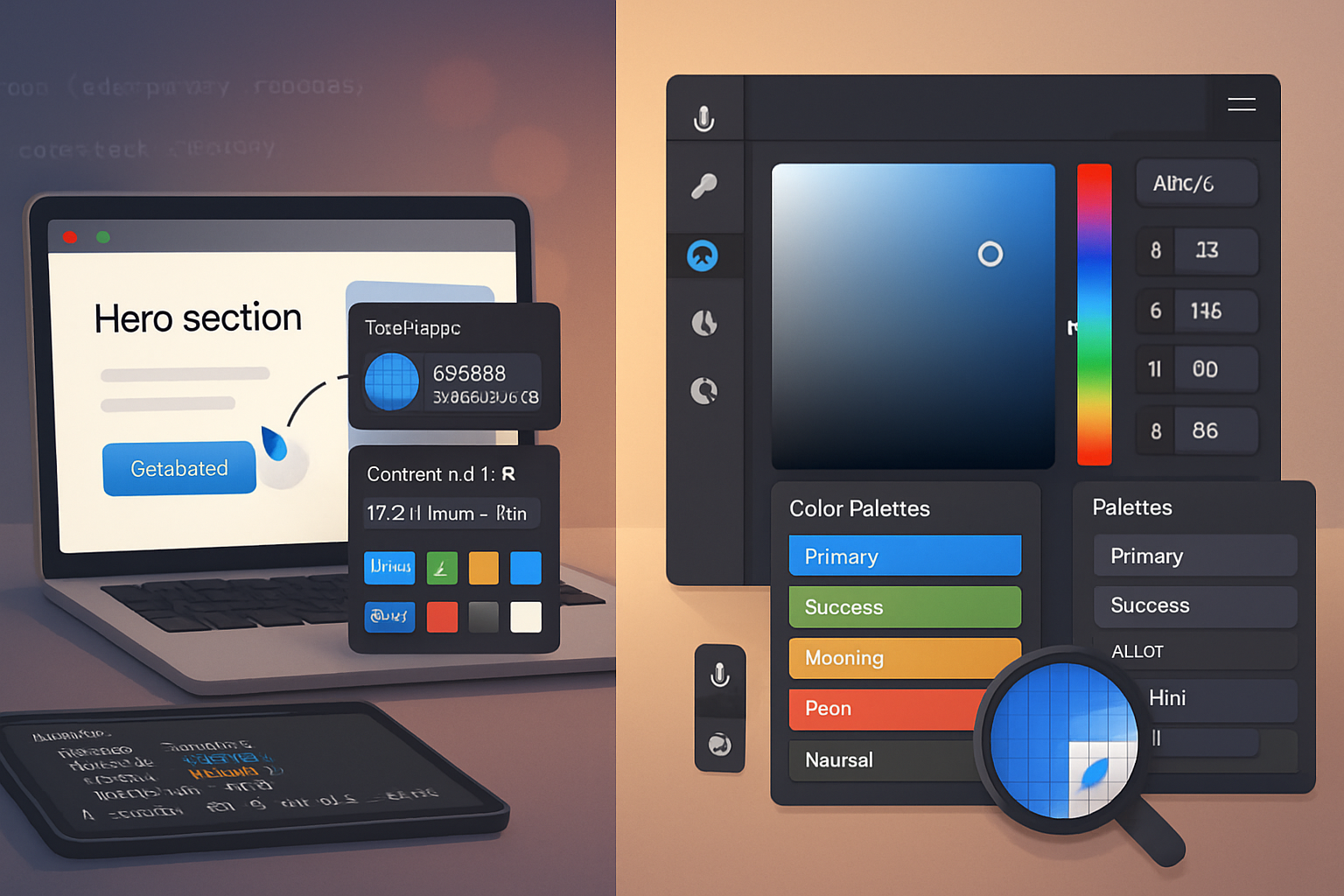
Add a magnifier, multi-pixel averaging mode, recent colors history, and export options (HEX, RGBa, HSL, CSS variables, token names). Those features reduce surprise when migrating picked colors into design systems.
- Validate accessibility automatically
After a color is picked, run WCAG contrast checks against likely background colors and show warnings or suggestions. Tools like [axe-core] and small contrast libraries can be embedded client-side.
- Store provenance and metadata
When a user picks a color, store where it came from (URL, timestamp, screenshot thumbnail) and how it was sampled (single pixel vs averaged). That helps auditing and team collaboration.
- Test across browsers and devices
Test the picker behavior on the browsers your audience uses. Use a caniuse check and telemetry to decide whether to enable the feature by default.
- Avoid blind trust in sampled pixels
Sampled pixels can be affected by anti-aliasing, subpixel rendering, overlays and composition. Consider sampling a small neighborhood and taking an average if you want more robust results.
Minimal EyeDropper usage example
async function pickColor() {
  if (!('EyeDropper' in window)) throw new Error('EyeDropper not supported');

  const eyeDropper = new EyeDropper();
  try {
    const result = await eyeDropper.open(); // requires user gesture
    // result.sRGBHex contains value like '#1a73e8'
    return result.sRGBHex;
  } catch (err) {
    // user cancelled or the picker failed
    console.error(err);
    return null;
  }
}
Add a UI layer on top of this for magnification, history and format conversion.
Fallback strategies
- Offer a secondary UI: a classic color input () or a custom picker built with canvas and image sampling for uploaded images.
- For screenshots: allow users to upload a screenshot and provide an in-app image picker with a magnifier and pixel averaging.
- Graceful degradation: if EyeDropper is supported, enable it; otherwise show the fallback with messaging.
Ethics, legal and privacy notes
- The API requires user consent (a user gesture) and runs in secure contexts; browsers added these constraints due to privacy concerns.
- Sampling a pixel’s color is not the same as reading text or private data. But UX should make the action explicit so users understand the scope of what they’re sharing with the app.
Conclusion: Should designers and teams embrace EyeDropper?
Yes - with caveats.
Use EyeDropper as a pragmatic tool for web-native color capture, prototyping and faster handoff. But don’t treat it as a replacement for color-managed design workflows. If your product or brand depends on precise color fidelity, invest in conversion, metadata preservation and UX features that bridge the gap between the simple sRGB sample EyeDropper returns and the nuanced expectations of designers.
EyeDropper is a bridge. Cross it, but bring your standards with you.
References and further reading
- EyeDropper API on MDN: https://developer.mozilla.org/en-US/docs/Web/API/EyeDropper
- Web.Dev guide: “Pick colors from the screen with the EyeDropper API”: https://web.dev/eye-dropper/
- WICG EyeDropper repository / explainer: https://github.com/WICG/eyedropper
- Browser support and compatibility (Can I Use): https://caniuse.com/mdn-api_eyedropper