· deepdives · 8 min read
Building a Real-Time Notification System: A Step-by-Step Guide Using the Badging API
A hands-on guide to building a real-time notification system using the Badging API. Learn architecture, code for client/service-worker/server, fallbacks (favicon/title), best practices, and troubleshooting tips for production-ready notification experiences.
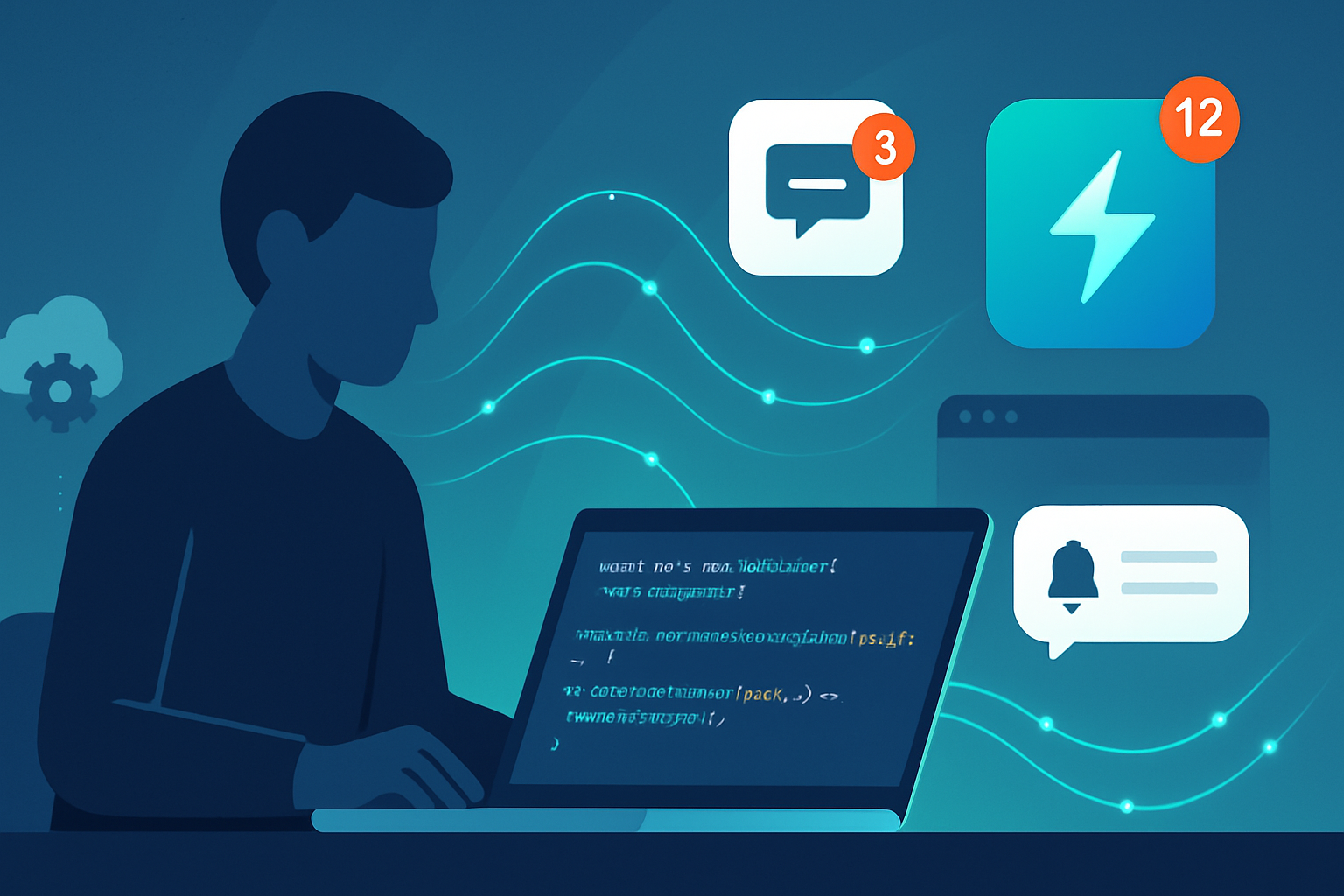
Outcome-first introduction
You’ll end up with a resilient, real-time notification system that updates users’ app icons (and page UI) when new events arrive - even when the app runs in the background. Follow this guide and you’ll be able to push live counts to users using the Badging API, keep tabs synced across open pages, and provide graceful fallbacks for browsers that don’t support the API.
Why the Badging API
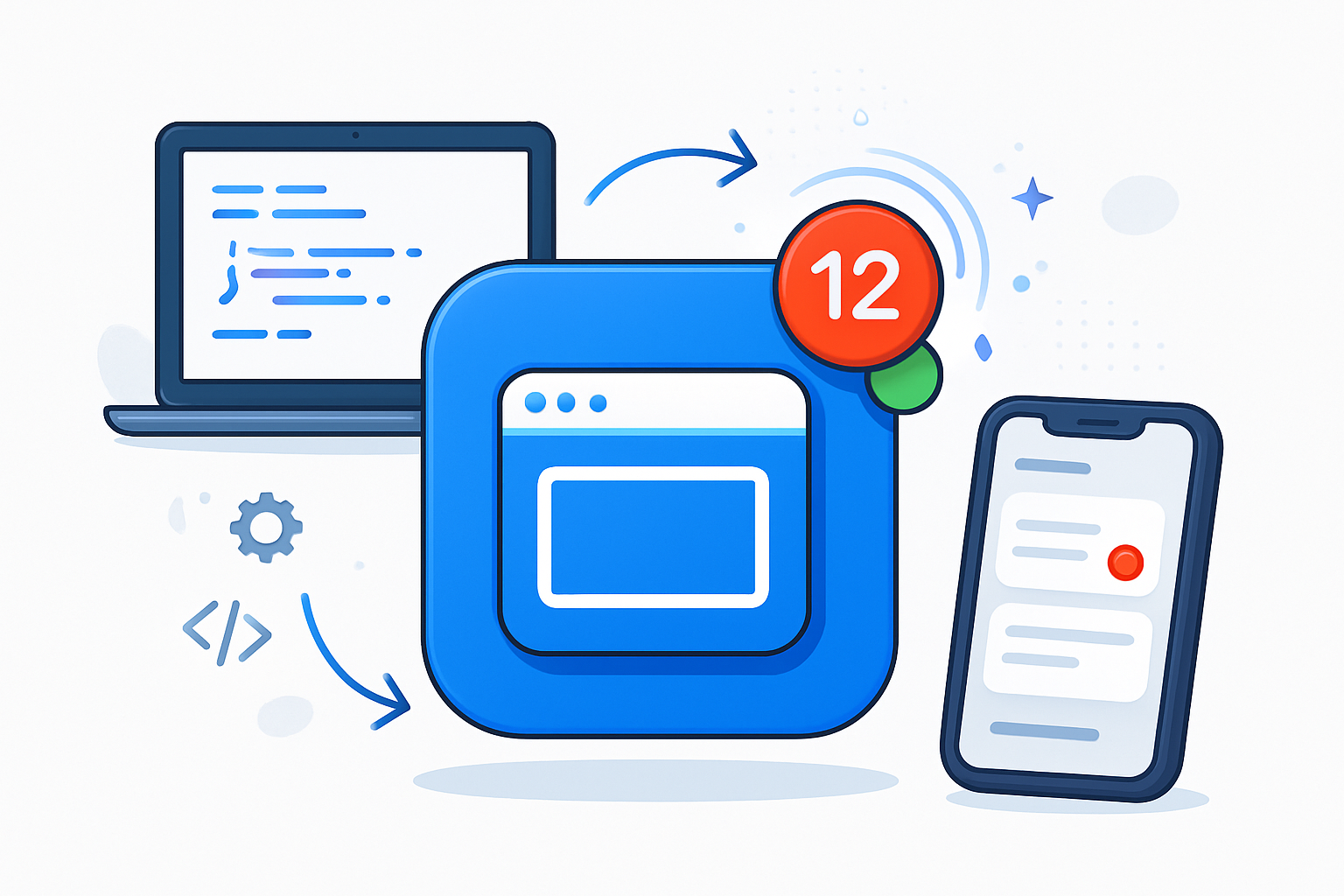
- It allows you to set a small numeric or simple badge on an installed web app’s icon (launcher/taskbar), giving clear, glanceable state without opening the app.
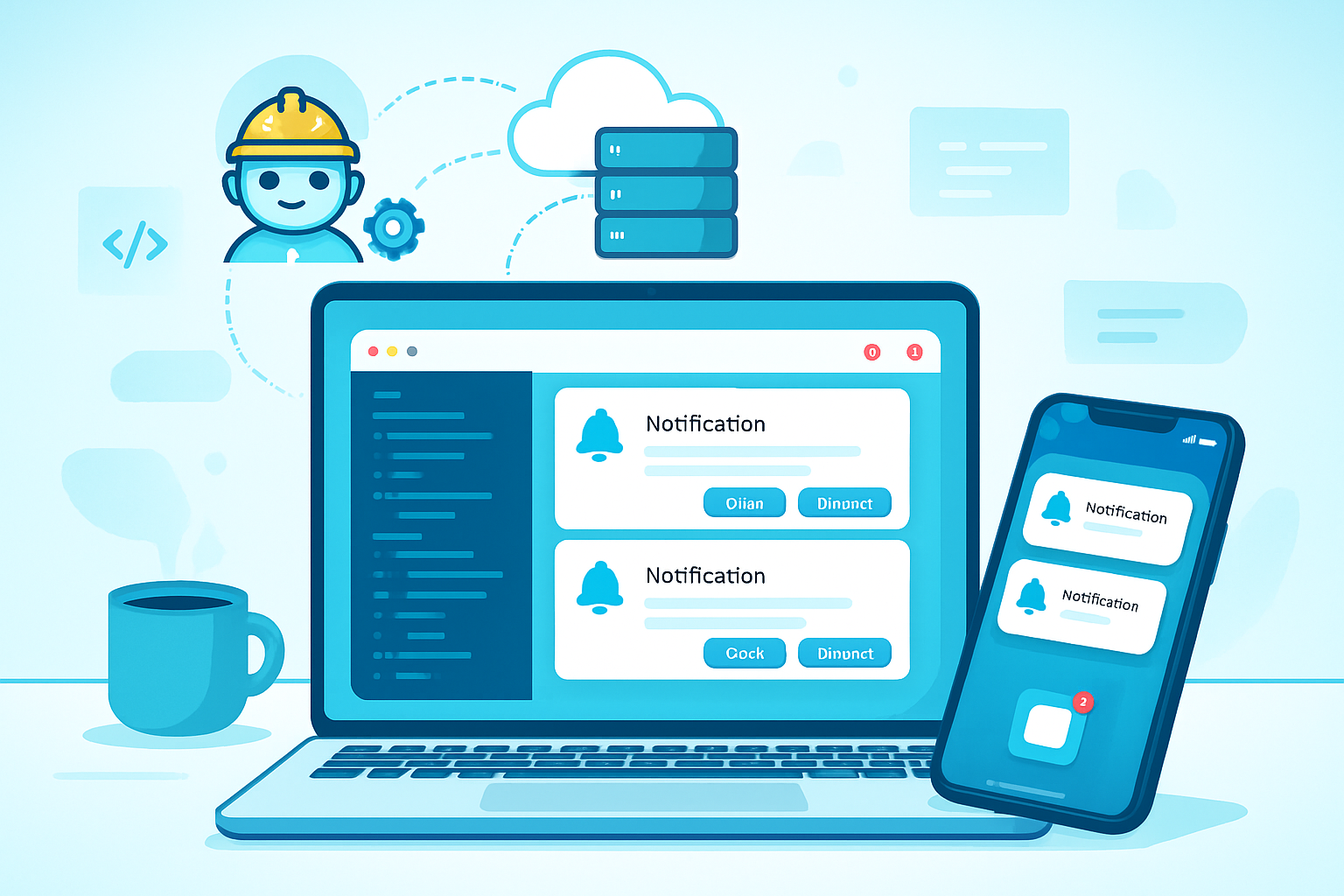
- Combined with the Notifications API, Service Workers, and a real-time transport (WebSocket or Push), it gives a modern, native-feeling notification experience.
What this guide covers
- Architecture and where the Badging API fits.
- Client code: service worker registration, WebSocket client, BroadcastChannel, and UI updates.
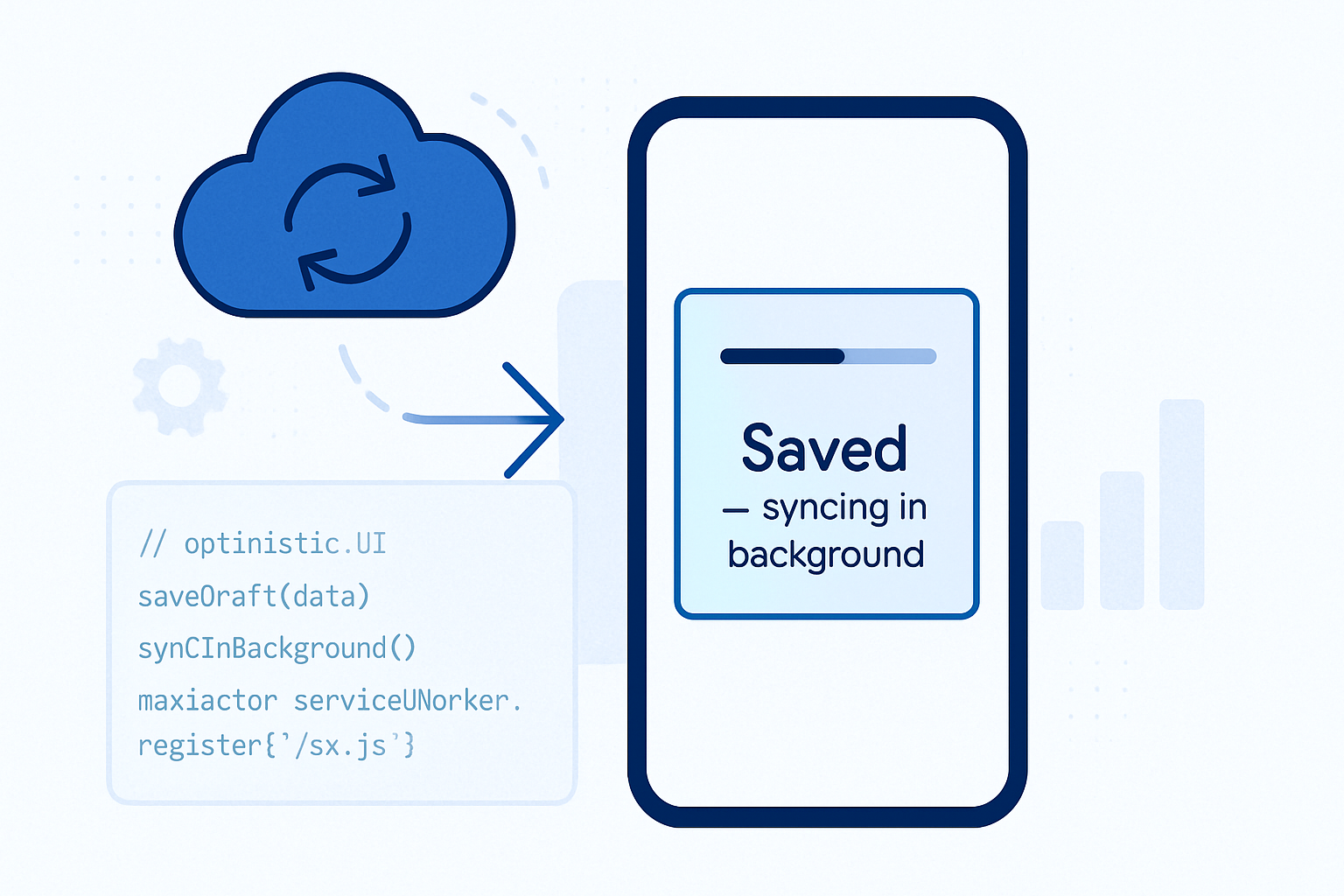
- Service Worker: handling incoming messages and updating app badge even when pages are closed.
- Server: a minimal Node.js WebSocket example to push events.
- Fallback techniques (favicon and title badges) for unsupported browsers.
- Best practices and troubleshooting tips.
Prereqs and support
- HTTPS (required for Service Worker and many APIs).
- Modern Chromium-based browsers have the best Badging support; behavior varies across platforms and may only apply to installed PWAs. Always feature-detect.
- Knowledge of JavaScript, basic Node.js for the server sample.
References
- Badging API (MDN): https://developer.mozilla.org/en-US/docs/Web/API/Badging_API
- Chrome developers: https://developer.chrome.com/docs/web-platform/badging/
Architecture overview
- A real-time transport (WebSocket or Push) delivers events from your server.
- The Service Worker receives background events (Push or messages via Service Worker client) and can update the badge using ServiceWorkerRegistration.setAppBadge / clearAppBadge.
- Open tabs use BroadcastChannel to sync their badge/UI state so the user sees consistent counts.
- For unsupported browsers or non-installed sites, a favicon/title fallback keeps the UX useful.
High-level diagram (conceptual)
Client pages <—(BroadcastChannel)—> Service Worker <—(WebSocket or Push)—> Server
Step 1 - Boilerplate: Register a Service Worker
Add a small registration script in your main page (e.g., main.js).
// main.js
if ('serviceWorker' in navigator) {
  navigator.serviceWorker
    .register('/sw.js')
    .then(reg => console.log('SW registered', reg))
    .catch(err => console.error('SW reg failed', err));
}
Step 2 - Feature detection for the Badging API
Always check support before calling APIs.
function supportsBadging() {
  // navigator.setAppBadge is available in window contexts
  // ServiceWorkerRegistration.setAppBadge for SW usage
  return (
    'setAppBadge' in navigator ||
    (typeof ServiceWorkerRegistration !== 'undefined' &&
      'setAppBadge' in ServiceWorkerRegistration.prototype)
  );
}
Step 3 - Client: Real-time connection, count management, and BroadcastChannel
This code keeps a local counter, updates the badge, and syncs across tabs.
// client-notifications.js
const bc = new BroadcastChannel('notifications_channel');
let unread = 0;

// Apply a badge (window context)
async function applyBadge(count) {
  try {
    if ('setAppBadge' in navigator) {
      if (count > 0) await navigator.setAppBadge(count);
      else await navigator.clearAppBadge();
    } else {
      // fallback handled elsewhere
      updateFaviconBadge(count);
    }
  } catch (err) {
    console.warn('Badging failed', err);
  }
}

// Keep UI in sync across tabs
bc.onmessage = ev => {
  if (ev.data && ev.data.type === 'badge') {
    unread = ev.data.count;
    renderBadgeInUI(unread);
    applyBadge(unread);
  }
};

// Example WebSocket connection for real-time events
const ws = new WebSocket('wss://your-server.example.com');
ws.addEventListener('message', event => {
  const payload = JSON.parse(event.data);
  if (payload.type === 'new_message') {
    unread += 1;
    // Push the update to other tabs
    bc.postMessage({ type: 'badge', count: unread });
    // Update local badge
    applyBadge(unread);
    // Optionally show a system notification too
    maybeShowNotification(payload);
  }
});

function renderBadgeInUI(count) {
  const el = document.getElementById('badge-count');
  if (!el) return;
  el.textContent = count > 0 ? String(count) : '';
}

// When the user views messages, reset count
async function clearUnread() {
  unread = 0;
  bc.postMessage({ type: 'badge', count: unread });
  await applyBadge(unread);
}
Step 4 - Service Worker: background badge updates and notifications
The Service Worker can set or clear the app badge even when pages are closed. Use registration.setAppBadge() in the worker context.
// sw.js
self.addEventListener('install', event => event.waitUntil(self.skipWaiting()));
self.addEventListener('activate', event =>
  event.waitUntil(self.clients.claim())
);

// Helper to set badge from SW
async function setBadgeFromSW(count) {
  try {
    if (self.registration && 'setAppBadge' in self.registration) {
      if (count > 0) await self.registration.setAppBadge(count);
      else await self.registration.clearAppBadge();
    }
  } catch (err) {
    console.warn('SW setBadge failed', err);
  }
}

// Example: handle incoming messages from the server using postMessage
self.addEventListener('message', event => {
  const data = event.data;
  if (data && data.type === 'server_event') {
    // Update badge
    setBadgeFromSW(data.count);

    // Optionally show a notification
    self.registration.showNotification(data.title || 'New event', {
      body: data.body || '',
      icon: '/images/icon-192.png',
      data: data,
    });
  }
});

// If you use Push API, handle push events here and update badge
self.addEventListener('push', event => {
  try {
    const payload = event.data
      ? event.data.json()
      : { title: 'Update', body: '' };
    // payload.count should be included by your server push payload
    if (payload.count !== undefined) {
      event.waitUntil(setBadgeFromSW(payload.count));
    }
    event.waitUntil(
      self.registration.showNotification(payload.title || 'New', {
        body: payload.body || '',
      })
    );
  } catch (err) {
    console.error('Push handling error', err);
  }
});
How to route server events into the Service Worker
- Approach A: WebSocket in pages, then postMessage to service worker for background badge changes (if a page is open you can forward events).
- Approach B: Server sends Push messages (Push API) directly to the Service Worker; SW handles badge update even when no pages are open.
- Approach C: Use a background WebSocket proxy in the Service Worker - note: Service Worker doesn’t support persistent WebSockets. For persistent connections use a separate native background process or keep pages open.
Server example: Minimal Node.js WebSocket server
This demonstrates broadcasting an event to clients (every 10s for demo).
// server.js
const WebSocket = require('ws');
const wss = new WebSocket.Server({ port: 8080 });

wss.on('connection', ws => {
  console.log('client connected');
  ws.send(JSON.stringify({ type: 'welcome' }));
});

// Demo: send an event every 10 seconds
setInterval(() => {
  const payload = JSON.stringify({
    type: 'new_message',
    message: 'Hello',
    ts: Date.now(),
  });
  wss.clients.forEach(client => {
    if (client.readyState === WebSocket.OPEN) client.send(payload);
  });
}, 10000);
Note: For production use, you’ll authenticate sockets, scale using a message broker (Redis pub/sub) and secure the connection with TLS.
Fallback strategies (if Badging API unsupported)
- Favicon badge: Draw a small badge on the page’s favicon using canvas. This is visible in the tab and is widely supported.
- Title count: Prepend “(3)” to document.title to show counts in the browser tab.
Favicon badge example (simple)
function updateFaviconBadge(count) {
  const link =
    document.querySelector("link[rel~='icon']") ||
    document.createElement('link');
  link.rel = 'icon';
  const img = document.createElement('img');
  img.src = '/images/icon-192.png';
  img.onload = () => {
    const canvas = document.createElement('canvas');
    canvas.width = 64;
    canvas.height = 64;
    const ctx = canvas.getContext('2d');
    ctx.drawImage(img, 0, 0, 64, 64);
    if (count > 0) {
      ctx.fillStyle = 'red';
      ctx.beginPath();
      ctx.arc(52, 12, 12, 0, Math.PI * 2);
      ctx.fill();
      ctx.fillStyle = 'white';
      ctx.font = 'bold 14px sans-serif';
      ctx.textAlign = 'center';
      ctx.textBaseline = 'middle';
      ctx.fillText(String(count), 52, 12);
    }
    link.href = canvas.toDataURL('image/png');
    document.getElementsByTagName('head')[0].appendChild(link);
  };
}
Best practices
- Progressive enhancement: Only call setAppBadge if supported. Always keep a fallback for visibility.
- Keep counts authoritative on the server: when the client opens the app, fetch the server count to avoid drift.
- Rate-limit badge updates: avoid hammering the API with frequent changes; debounce or batch events.
- Privacy: don’t display sensitive data in the badge or in Notification bodies if users can share screens.
- User controls: provide settings to disable badges/notifications per user.
- Test on target platforms: behavior differs across Chrome on desktop, Chrome on Android, and other browsers.
Security and permissions
- Service Worker and Push require HTTPS.
- The Notifications API requires user permission; request it only in response to user action and explain value.
- Don’t rely on client clocks or local counters - reconcile with server state after reconnect.
Troubleshooting checklist
- Is the site served over HTTPS? Service Workers and Push require it.
- Are you testing on a supported browser and platform? The Badging effect may only show on installed PWAs.
- Are you calling the API correctly (feature detection)? Check both navigator.setAppBadge and registration.setAppBadge depending on context.
- Are there errors in DevTools console? Badging calls can throw if the browser restricts them.
- If using Push: confirm push subscription is valid and the push payload contains badge count.
- If badges don’t change visually: confirm the app is installed (on some platforms) - for PWAs the icon badge is often only present when installed.
Common pitfalls
- Expecting badges to appear for regular tabs like mobile web pages. Badges are primarily for installed apps; provide a title/favicon fallback for tabs.
- Trying to use persistent WebSockets in a Service Worker - Service Workers are not a place for long-lived sockets.
- Not handling reconnection logic or deduplicating events; counts can double if a client connects multiple times.
Production checklist
- Secure connections (TLS) and auth for sockets or push endpoint.
- Server-side rate-limiting and batching for badge updates.
- Graceful degradation for unsupported platforms.
- Analytics: measure delivery and open rates for notification events.
- Accessibility: ensure any in-app notification UI is announced via ARIA live regions for screen readers.
Wrap-up (the key idea)
Use the Badging API to give users a silent yet powerful signal that something needs attention. Combine it with Service Workers and real-time event delivery - WebSockets for connected sessions, Push API for background delivery - and always provide fallbacks (favicon/title). The result: a modern, native-like notification experience that keeps users informed at a glance.
Further reading
- MDN Badging API: https://developer.mozilla.org/en-US/docs/Web/API/Badging_API
- Chrome docs: https://developer.chrome.com/docs/web-platform/badging/