· deepdives · 8 min read
Beyond Gaming: Innovative Uses of the Gamepad API in Interactive Applications
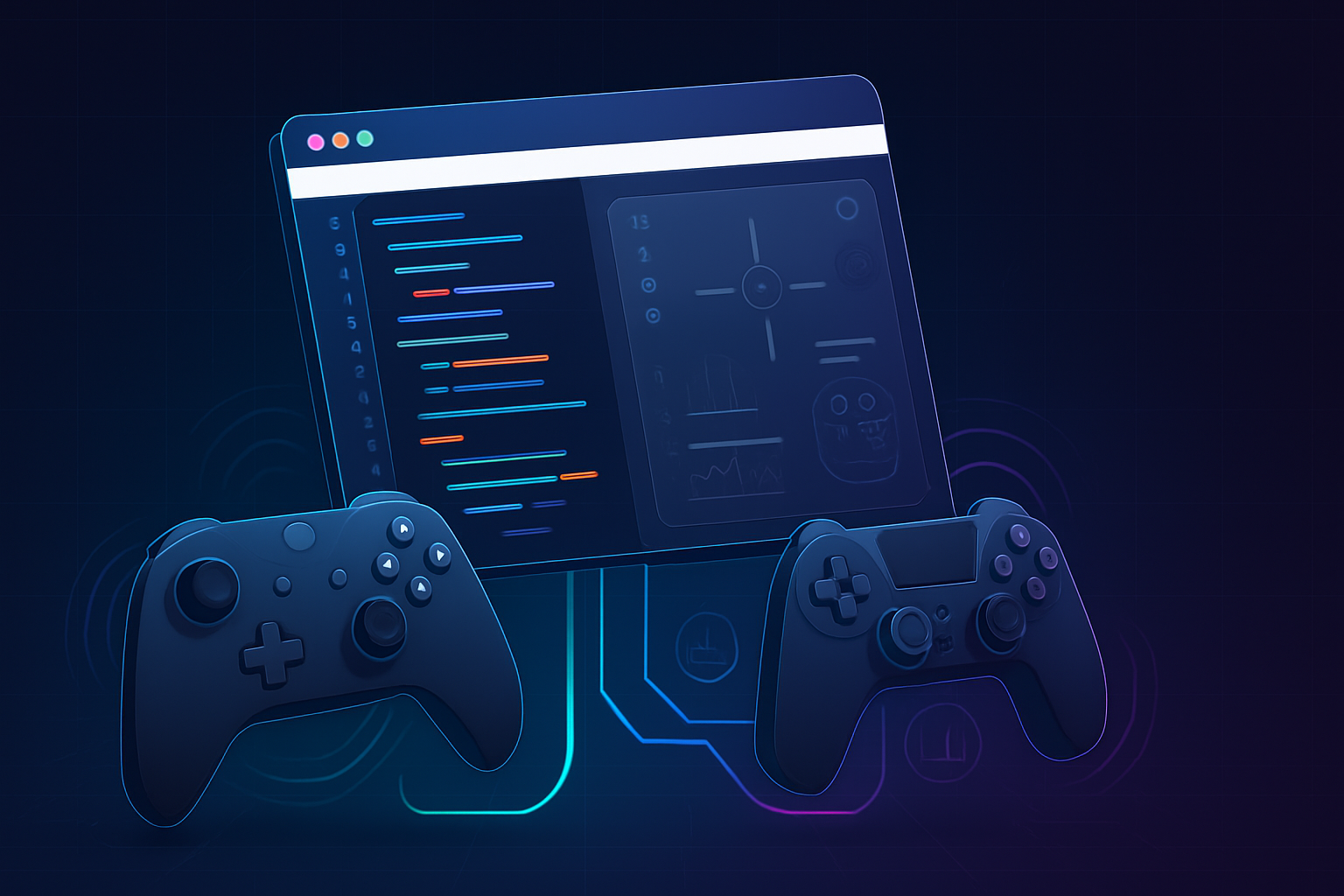
Learn how to use the Gamepad API for more than games: control presentations, manipulate data visualizations, drive generative art and sound. Practical patterns, mapping utilities and copy-paste-ready code help you build novel interactive web apps with controllers.
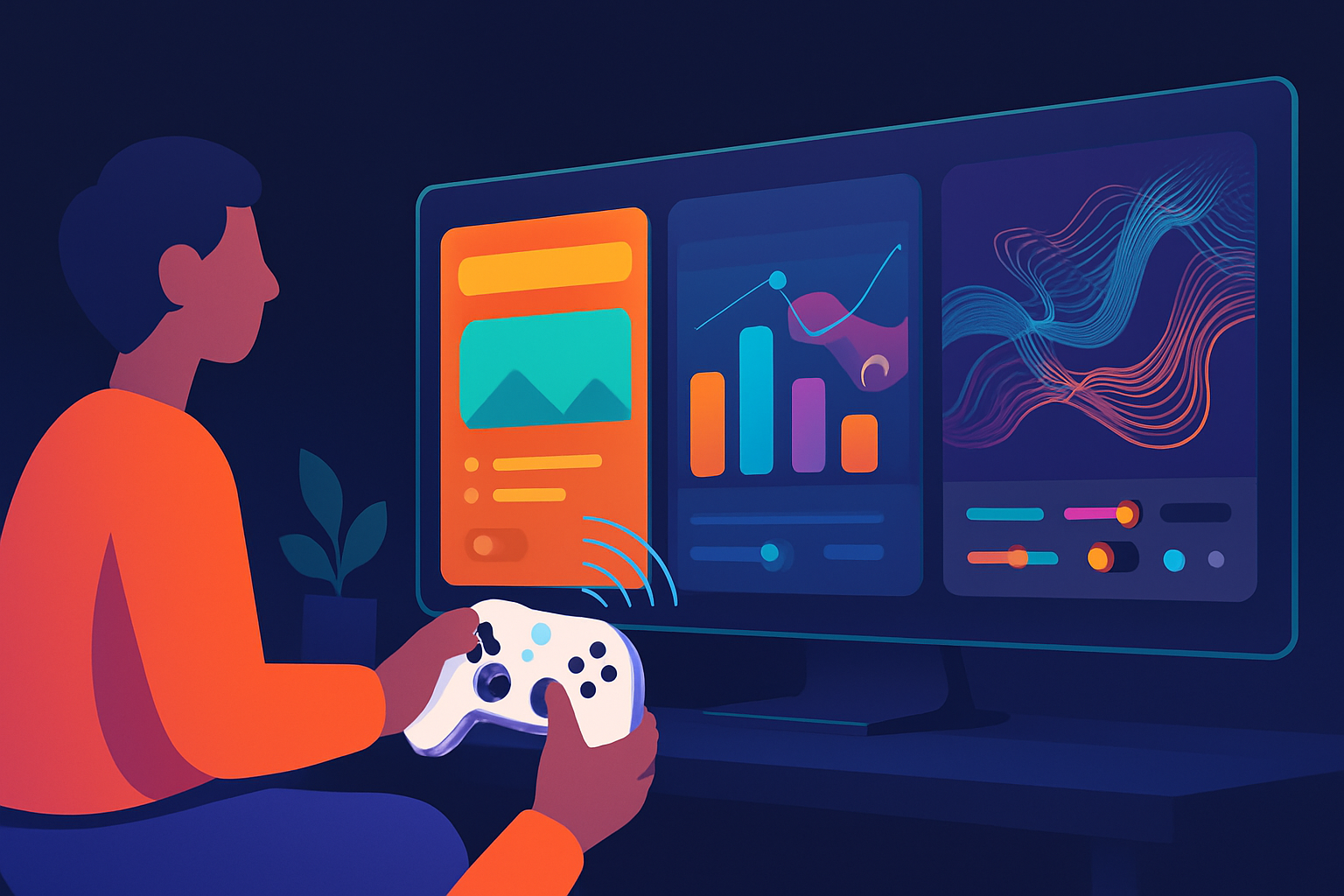
Outcome first: by the end of this article you’ll have working patterns and copy‑paste code that let you use any standard game controller to control slides, tweak live data visualizations, drive generative web art, and even play simple web instruments - all without a mouse or keyboard.
Why this matters. Controllers are precise, ergonomic, and widely available. They add a tactile, expressive layer to web apps that is underused outside gaming. Use them and your interactions become faster, more playful, and often more accessible.
Quick primer: how the Gamepad API works
The Gamepad API exposes connected controllers through navigator.getGamepads() and events like gamepadconnected and gamepaddisconnected. You typically poll the gamepad state each animation frame because support for event-driven state updates is limited.
Minimal connection boilerplate:
window.addEventListener('gamepadconnected', e => {
  console.log('Gamepad connected', e.gamepad);
});

window.addEventListener('gamepaddisconnected', e => {
  console.log('Gamepad disconnected', e.gamepad);
});

function pollGamepads() {
  const pads = navigator.getGamepads ? navigator.getGamepads() : [];
  // pads is an array-like: iterate and use pads[i]
}
Call pollGamepads() inside requestAnimationFrame to read axes and buttons frequently.
Refer to MDN for a complete spec and mapping notes: https://developer.mozilla.org/en-US/docs/Web/API/Gamepad_API
Core utilities you’ll reuse
Two small helpers make mapping controllers robust across devices: a deadzone/normalizer for axes and a simple low-pass smoother.
function normalizeAxis(value, deadzone = 0.12) {
  if (Math.abs(value) < deadzone) return 0;
  // scale the remaining range back to [-1,1]
  const sign = value > 0 ? 1 : -1;
  return (sign * (Math.abs(value) - deadzone)) / (1 - deadzone);
}

function smooth(previous, current, alpha = 0.2) {
  return previous * (1 - alpha) + current * alpha;
}
Use these before mapping axis values to application parameters.
Example 1 - Controller-driven slide presentations
Imagine advancing slides with the right bumper, moving between slide fragments with a face button, and using an analogue stick as a laser pointer.
Why this is useful: no need for clickers, greater precision for pointer movement, and creative gestures for presenters.
HTML structure (very simple):
<section class="slide" data-index="0">Slide 1</section>
<section class="slide" data-index="1">Slide 2</section>
<!-- ... -->
<div
  id="pointer"
  style="position:fixed;top:0;left:0;width:12px;height:12px;border-radius:50%;background:red;pointer-events:none"
></div>
JS to map controller to slide actions and pointer:
let pointer = document.getElementById('pointer');
let pointerX = window.innerWidth / 2;
let pointerY = window.innerHeight / 2;
let pointerVx = 0;
let pointerVy = 0;
let prevButtons = [];
let currentSlide = 0;

function advanceSlide(dir) {
  currentSlide = Math.max(0, currentSlide + dir);
  document.querySelectorAll('.slide').forEach(s => (s.style.display = 'none'));
  const s = document.querySelector(`.slide[data-index='${currentSlide}']`);
  if (s) s.style.display = '';
}

function handleGamepadFrame() {
  const pads = navigator.getGamepads();
  const g = pads[0];
  if (!g) return;

  // Buttons: assume standard mapping; 5 = RB (advance), 4 = LB (back)
  const btnAdvance = g.buttons[5];
  const btnBack = g.buttons[4];

  // simple edge detection
  if (btnAdvance.pressed && !prevButtons[5]) advanceSlide(1);
  if (btnBack.pressed && !prevButtons[4]) advanceSlide(-1);

  // Left stick -> pointer
  const rawX = normalizeAxis(g.axes[0]);
  const rawY = normalizeAxis(g.axes[1]);

  pointerVx = smooth(pointerVx, rawX * 20); // pixels per frame
  pointerVy = smooth(pointerVy, rawY * 20);

  pointerX = Math.min(window.innerWidth, Math.max(0, pointerX + pointerVx));
  pointerY = Math.min(window.innerHeight, Math.max(0, pointerY + pointerVy));

  pointer.style.transform = `translate(${pointerX - 6}px, ${pointerY - 6}px)`;

  prevButtons = g.buttons.map(b => b.pressed);
}

function raf() {
  handleGamepadFrame();
  requestAnimationFrame(raf);
}

requestAnimationFrame(raf);
Notes:
- Use
pointer-events:noneso the pointer doesn’t block clicks. - Tune sensitivity and smoothing for different controller strengths.
Example 2 - Manipulate data visualizations (D3) with a controller
Use the controller to explore data interactively: scrub through time-series, zoom, filter categories, or adjust aesthetic parameters like color scale.
Pattern:
- Map axes to continuous parameters (zoom, time offset, thresholds).
- Map buttons to discrete toggles (switch dataset, highlight category).
Simple pattern (pseudo-code with D3):
let timeOffset = 0;
let zoom = 1;
let selectedCategory = null;

function updateChart() {
  // d3 code using timeOffset & zoom to re-render
}

function handleVizControls(g) {
  timeOffset += normalizeAxis(g.axes[0]) * 0.05; // scrub horizontally
  zoom = Math.max(0.2, zoom + normalizeAxis(g.axes[1]) * 0.02);

  // A button toggles category highlight
  if (g.buttons[0].pressed && !prevButtons[0]) {
    selectedCategory = selectedCategory ? null : 'Category A';
  }

  updateChart();
}
This approach turns the controller into a tactile filter wheel for datasets. Users quickly find patterns by turning a stick instead of fumbling with UI controls.
Example 3 - Generative web art driven by controllers
Controllers map fantastically to expressive parameter spaces in generative visuals. Use axes as control knobs for color palettes, particle emission rate, noise frequency, brush size - anything continuous.
Canvas sketch example (compact):
const canvas = document.querySelector('canvas');
const ctx = canvas.getContext('2d');
canvas.width = innerWidth;
canvas.height = innerHeight;

let hue = 200;
let particleSpeed = 1;
let noiseScale = 0.01;

function draw() {
  const g = navigator.getGamepads()[0];
  if (g) {
    hue = (hue + normalizeAxis(g.axes[2]) * 3) % 360; // right stick X changes hue
    particleSpeed = Math.max(
      0.1,
      particleSpeed + normalizeAxis(g.axes[3]) * 0.1
    ); // right stick Y
    noiseScale = Math.max(0.001, noiseScale + normalizeAxis(g.axes[1]) * 0.001); // left stick Y

    if (g.buttons[0].pressed) ctx.globalCompositeOperation = 'lighter';
    else ctx.globalCompositeOperation = 'source-over';
  }

  // Simple particle spray
  for (let i = 0; i < 10; i++) {
    ctx.fillStyle = `hsla(${hue},80%,50%,0.08)`;
    const x = Math.random() * canvas.width;
    const y = Math.random() * canvas.height;
    ctx.beginPath();
    ctx.arc(x, y, particleSpeed * 3, 0, Math.PI * 2);
    ctx.fill();
  }

  requestAnimationFrame(draw);
}

draw();
This minimal pattern becomes more powerful when combined with Perlin noise, modular synthesis, or shader-based rendering (WebGL / three.js). The controller becomes a live performance instrument.
Example 4 - WebAudio + controller: a simple synth
Map buttons to note triggers and axes to filter cutoff / amplitude envelope. This works well for live performance and interactive installations.
const ctx = new (window.AudioContext || window.webkitAudioContext)();

function playNote(freq) {
  const o = ctx.createOscillator();
  const g = ctx.createGain();
  const filter = ctx.createBiquadFilter();

  o.type = 'sawtooth';
  o.frequency.value = freq;
  filter.type = 'lowpass';
  filter.frequency.value = 1000;

  o.connect(filter);
  filter.connect(g);
  g.connect(ctx.destination);

  g.gain.value = 0;
  g.gain.linearRampToValueAtTime(0.2, ctx.currentTime + 0.01);
  g.gain.linearRampToValueAtTime(0.0001, ctx.currentTime + 1.0);

  o.start();
  o.stop(ctx.currentTime + 1.1);
}

let lastButtons = [];

function audioFrame() {
  const g = navigator.getGamepads()[0];
  if (!g) return;

  // Map face buttons to notes
  const mapping = [261.63, 293.66, 329.63, 349.23]; // C4, D4, E4, F4
  mapping.forEach((freq, i) => {
    if (g.buttons[i].pressed && !lastButtons[i]) playNote(freq);
  });

  // Right stick Y controls filter for ongoing design (requires longer-lived nodes)

  lastButtons = g.buttons.map(b => b.pressed);
}

function rafAudio() {
  audioFrame();
  requestAnimationFrame(rafAudio);
}

requestAnimationFrame(rafAudio);
This is a starting point. For a real instrument you’d manage voices, envelopes, and continuous control of filters by keeping nodes alive and updating their parameters per frame.
Advanced topics and hard lessons
Mapping differences: not all controllers use the same button/axis layout. The
gamepad.mappingproperty will be'standard'for controllers that follow the standard layout - but many devices won’t. Build mapping profiles or allow users to remap buttons in your UI.Deadzones and drift: analog sticks often center imperfectly. Always apply a deadzone and smoothing to prevent drift and jitter.
Polling frequency: use
requestAnimationFrame. It keeps updates in sync with rendering and avoids unnecessary CPU usage.Security & permissions: the Gamepad API requires a secure context (HTTPS) in most browsers. There’s no explicit permission prompt for basic state, but some browsers are stricter on extended features.
Haptics: some controllers expose a
vibrationActuator. You can use this to provide feedback for non-gaming interactions (e.g., haptic confirmation when a slide changes).
if (g.vibrationActuator) {
  g.vibrationActuator.playEffect('dual-rumble', {
    duration: 100,
    strongMagnitude: 0.6,
    weakMagnitude: 0.2,
  });
}- Mobile and browser support: support varies across browsers and platforms. Test on Chrome, Edge, and Firefox. Mobile browsers often lack full Gamepad API support unless you use Bluetooth controllers paired to the device.
Example mapping profile and remapping UI
Let users remap. Keep a simple JSON structure and a small UI that listens for the next button press to capture a mapping.
Mapping example:
{
  "advance": { "type": "button", "index": 5 },
  "back": { "type": "button", "index": 4 },
  "pointerX": { "type": "axis", "index": 0 },
  "pointerY": { "type": "axis", "index": 1 }
}
A capture loop looks like this (simplified):
async function captureNextInput() {
  return new Promise(resolve => {
    const onFrame = () => {
      const g = navigator.getGamepads()[0];
      if (!g) return requestAnimationFrame(onFrame);

      // detect any pressed button
      for (let i = 0; i < g.buttons.length; i++) {
        if (g.buttons[i].pressed) return resolve({ type: 'button', index: i });
      }

      // detect significant axis movement
      for (let i = 0; i < g.axes.length; i++) {
        if (Math.abs(g.axes[i]) > 0.5)
          return resolve({ type: 'axis', index: i });
      }

      requestAnimationFrame(onFrame);
    };

    requestAnimationFrame(onFrame);
  });
}
This quick approach is intuitive for users and lets you support many controllers without manual mapping tables.
Use cases and inspiration
- Presenters who want free movement on stage while keeping slide control and a pointer.
- Data journalists building tactile dashboards where analysts can scrub time with a joystick.
- Digital artists and VJs controlling visuals and sound in live shows.
- Museums and installations where visitors use controllers to explore datasets or manipulate exhibits.
- Accessibility: alternate input devices can help users who find mice or keyboards difficult.
Testing and debugging tips
- Chrome has a built-in Gamepad inspector at chrome://gamepad (type into the address bar) which is invaluable for seeing raw axes & button indices.
- Log
navigator.getGamepads()to see the mapping your controller exposes. - Allow on-screen remapping - it saves frustration.
Closing - why you should try this now
Game controllers are cheap, ergonomic, and expressive. They give you continuous and discrete input in the same device. With a few utility helpers and a considered mapping strategy you can transform static web apps into tactile, playful, and more accessible experiences. Controllers invite exploration; let your users touch the data, not just click it. Start by plugging one in, map a few axes, and within an afternoon you’ll have replaced clunky sliders with elegant, physical knobs that feel like they belong to the experience.
References
- MDN Gamepad API: https://developer.mozilla.org/en-US/docs/Web/API/Gamepad_API
- Gamepad test tool: https://html5gamepad.com/